Quick answer
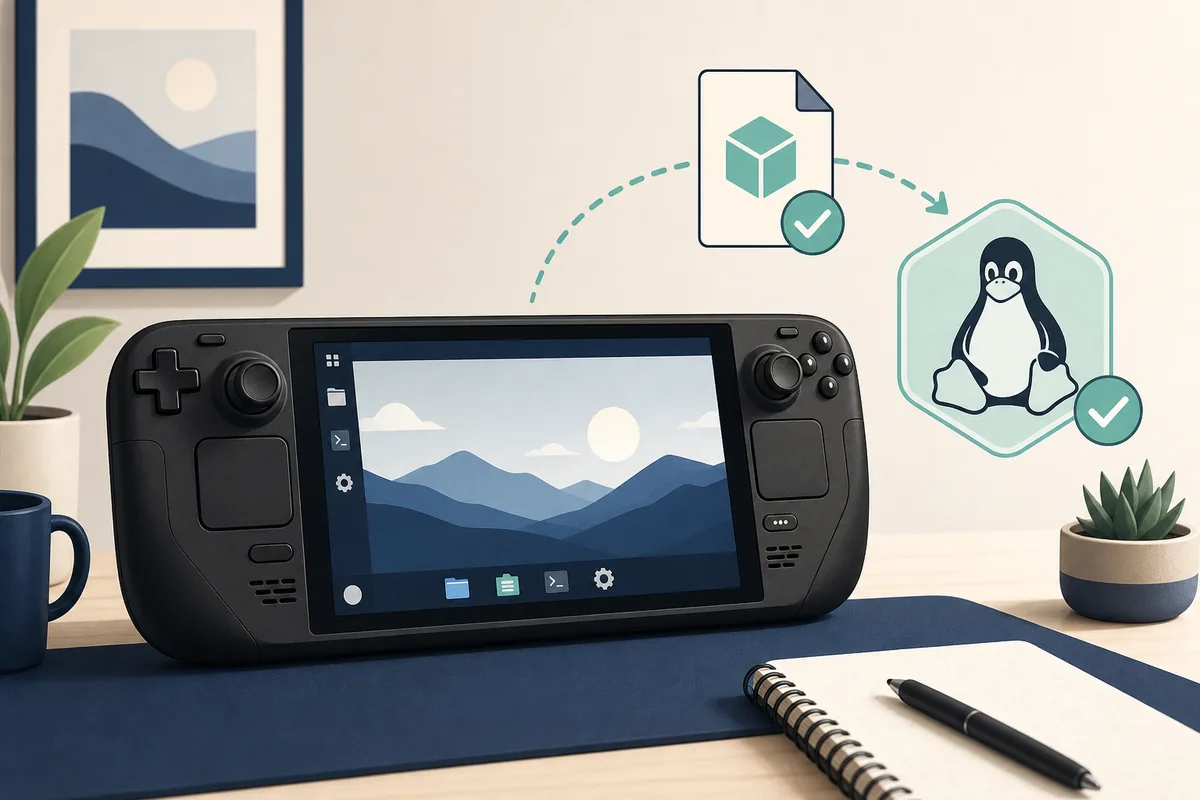
For the clearest Eden Emulator on Steam Deck setup, switch to Desktop Mode, download the Steam Deck-specific AppImage from a release record you can verify, make the file executable, launch it once before adding shortcuts, and keep the previous build in a separate folder. Stable is the sensible baseline for most users. Nightly is worth testing only when you need a documented fix, want to compare a regression, or can restore the working build quickly.
The important boundary is that a download page, EmuDeck shortcut and emulator configuration are three different things. EmuDeck can help organize shortcuts, but it should not replace the official Eden release record. The files you use for games, keys and firmware are also separate from the emulator and are not supplied by this site.
Verified Steam Deck releases
This page was checked on August 16, 2026. The current Stable release is Eden v0.2.1, while the latest Nightly record checked for this guide is Eden Nightly - Aug 21 2026, tag v1787336654.5c54abf353. Release records can change after publication, so reopen the official Stable releases or the official Nightly releases page before installing a later build.
The current Steam Deck asset URLs were not included in the direct-file checks for this update. Use the official Stable release record and the official Nightly release record above, then verify the asset name and size before installing. This guide does not claim a current Steam Deck direct URL.
Open official Stable release record · Open official Nightly release record
| Build | Best fit | Verified snapshot |
|---|---|---|
| Stable | First install and predictable testing | v0.2.1 · verify on official release record |
| Nightly | A specific recent fix or controlled comparison | Aug 21 2026 · tag v1787336654.5c54abf353 |
| Generic Linux build | Only when the release record has no Deck target or you have a reason to compare | Do not assume it is equivalent to the Deck build |
Install Eden Emulator in Desktop Mode
Desktop Mode is the least confusing place to start because it gives you a normal file manager, terminal access and a clear way to manage executable permissions. Download the file that matches your chosen channel, save it in a dedicated folder and do not mix Stable and Nightly under one generic filename.
Before launching, compare the local filename with the release record. A Steam Deck build should contain the Deck target in the official asset list; a file with a familiar logo or a third-party installer name is not enough. If you use the direct links above, keep the downloaded filename unchanged so a future bug report can identify the exact build.
From the directory containing the AppImage, the normal terminal flow is chmod +x Eden-Linux-v0.2.1-steamdeck-clang-pgo.AppImage and then ./Eden-Linux-v0.2.1-steamdeck-clang-pgo.AppImage. You can also enable execution in the file manager. Launch once before adding the program to Steam so you know whether a problem belongs to the file, graphics stack or shortcut configuration.
Do not delete the previous working build after the first successful launch. Keep Stable and Nightly in separate folders, and record which one you tested. That small habit turns a vague crash into a reproducible comparison.
EmuDeck and shortcut workflow
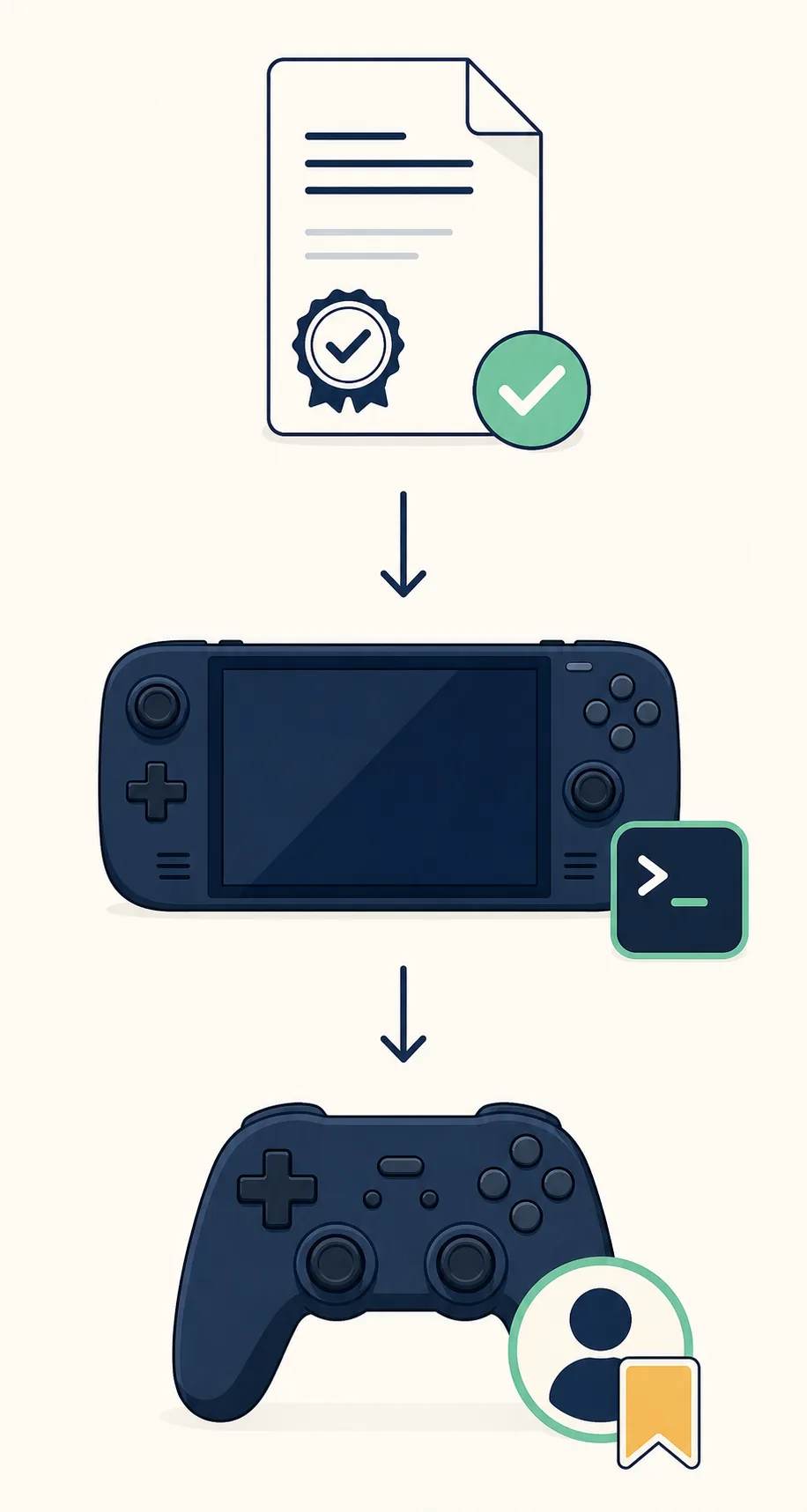
If you use EmuDeck, treat it as an optional organization layer rather than the source of the emulator binary. The safest sequence is to verify and launch the Eden AppImage in Desktop Mode first, then create or refresh a shortcut that points to that known file. This makes it easier to tell whether a later issue came from the emulator build or from a shortcut and launch argument.
A shortcut is convenience, not a compatibility fix. Test the game from the same executable that the shortcut will use, confirm the controller profile, and keep the original path stable. If you move the AppImage, rename it, or replace it with a Nightly, update the shortcut deliberately instead of letting two copies compete for attention.
For broader Linux package context, compare the existing Eden Linux download guide, then use the general setup guide for legal data and first-launch preparation. This page stays focused on the Steam Deck-specific decision rather than repeating every platform instruction.
Controller and performance baseline
Connect the controller or built-in Deck controls before opening Eden, then configure one input layer at a time. If Steam Input, a custom profile and Eden's own mapping all remap the same button, a double action can look like an emulator bug. Start with a simple Player 1 profile, save it with a recognizable name and test navigation before changing gyro, paddles or per-game overrides.
For a clean performance comparison, keep the game version, Eden build, graphics settings, refresh rate, power profile and driver state the same. Change one variable, reproduce the same scene and record the result. The controller setup guide covers broader input detection and mapping problems, while compatibility checks help separate a title-specific issue from a general setup failure.
Steam Deck performance is not a single number. A stable frame rate can still feel uneven if frame pacing, shader compilation, thermal limits or a game-specific compatibility issue is involved. Avoid copying a random configuration from a different build or device and calling it a universal best setting.
| Observation | Check first | Safer next step |
|---|---|---|
| Buttons activate twice | Steam Input and Eden mapping overlap | Temporarily use one input layer |
| Low or uneven FPS | Same scene, build, refresh rate and thermal state | Repeat a controlled comparison before changing settings |
| A game works in one build only | Stable/Nightly tag and driver state | Keep the working build and report the exact difference |
Black screen and 30 FPS troubleshooting
A black screen does not identify one root cause. First confirm that the AppImage itself launches in Desktop Mode, then check whether the issue appears before a game loads or only after a title starts. A wrong architecture, missing execute permission, Vulkan or driver behavior, an invalid graphics option, and a title-specific compatibility problem can look similar from the outside.
For a 30 FPS report, record the exact scene, refresh rate, power profile, build tag and whether the limit is stable or fluctuates. Do not assume that changing a frame-rate counter alone will improve emulation. Compare the current Stable build with the latest Nightly only when you can keep the old build and restore it, because a new build can fix one title while regressing another.
Use a short diagnostic loop: reproduce once, change one graphics or input variable, reproduce again, then roll back if the result is worse. If the problem survives a return to the known-good AppImage, inspect the game version, legal system data, driver state and device temperature before blaming the release.
Update, rollback and report a regression
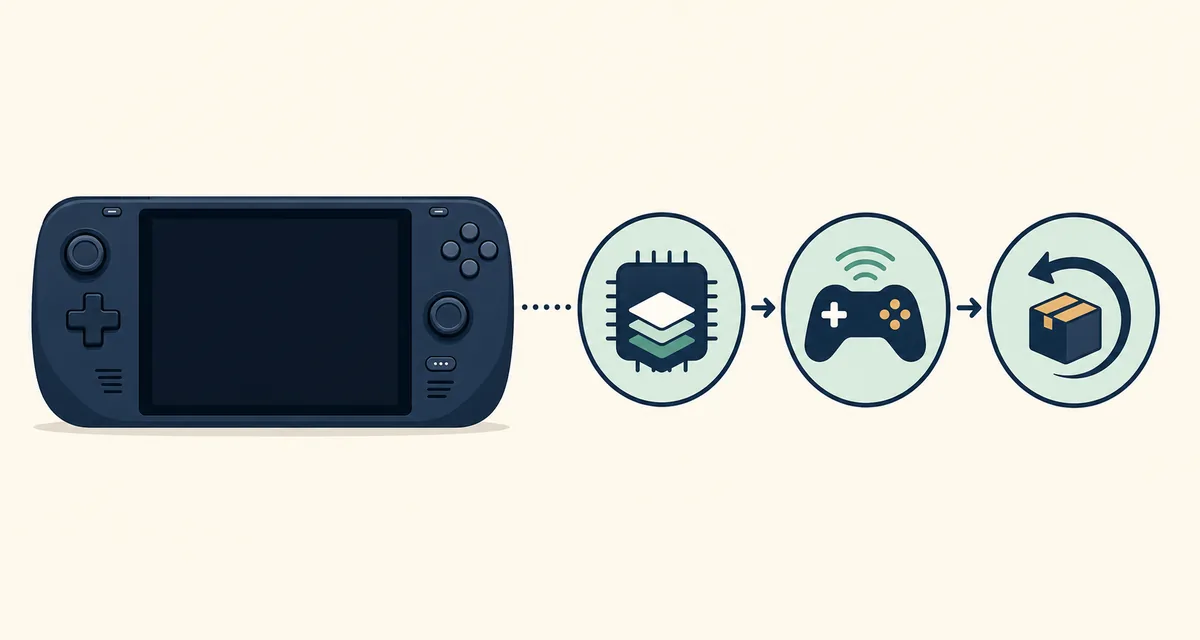
When a newer build is available, close Eden, back up important user data and keep the prior AppImage untouched. Install or launch the new file in a separate location first. If the new build causes a crash, black screen, controller regression or worse frame pacing, return to the previous program file before deleting settings or saves. The Eden update guide explains the same backup-first principle across platforms.
A useful report includes the full Nightly tag or Stable version, Steam Deck mode, game version, graphics driver state, controller configuration, exact reproduction steps and whether Stable still works. A sentence such as “Eden is slow” is much less useful than a repeatable comparison with the build, scene and settings recorded.
If you are checking a game rather than the launcher, use the game compatibility guide and keep the report scoped to the tested device and build. Compatibility is evidence tied to a configuration, not a permanent promise for every Steam Deck owner.
Source, legal and safety boundaries
This site is an independent guide, not the Eden project. Use the official Eden website and its Forgejo release records to confirm package names, tags and current files. Do not trust a mirror because it copies the logo, calls a file “latest” or bundles extra installers. If the final hostname, filename or release tag does not match the record, stop and verify the source again.
Eden does not provide commercial games, ROMs, decryption keys or console firmware. This guide does not provide them either. Use only backups and system data you are legally entitled to use, keep private files private and follow the laws that apply where you live. For the separate setup boundary, read the keys and firmware guide before importing anything.
Eden Emulator on Steam Deck FAQ
Which Eden Emulator build should I try first on Steam Deck?
Start with the verified Stable Steam Deck PGO AppImage unless you have a specific reason to test Nightly. Keep the Stable file so you can roll back if the newer build behaves differently.
Is there a Steam Deck-specific Eden AppImage?
The official release records can publish a Steam Deck-targeted AppImage. This guide verified the Stable v0.2.1 and Aug 21 2026 Nightly Steam Deck PGO file URLs on August 16, 2026; check the release record again before a later install.
Can EmuDeck fix Eden Emulator compatibility?
EmuDeck can help organize shortcuts and launchers, but it cannot guarantee compatibility. Verify the Eden binary first, then treat the shortcut as a separate layer you can troubleshoot.
Why does Eden Emulator on Steam Deck run at 30 FPS?
A 30 FPS result can reflect the game, frame pacing, refresh rate, power or thermal limits, graphics settings, driver state or a build-specific regression. Record the exact scene and compare one variable at a time instead of assuming one universal setting.
What should I do when Eden shows a black screen?
Confirm the AppImage architecture and execute permission, test in Desktop Mode, check graphics and driver behavior, and compare a known-good Stable build before deleting user data.
Does this page provide games, keys or firmware?
No. The page covers the emulator application and setup workflow only. Use lawful backups and system data that you are entitled to use.