How to update Eden Emulator safely
Eden does not have one universal update procedure that is identical on every platform. The dependable method is to open the official release record, identify the Stable or Nightly package that matches your operating system and architecture, close Eden completely, preserve your user data, and replace or install the application package. Keep the previous working build until the new one passes a normal launch and game test.
The version facts on this page are a dated reference, not a permanent latest-version claim. The Stable release checked for this guide is Eden v0.2.1, published June 2, 2026. The verified Nightly record was Eden Nightly - Aug 21 2026, published August 15, 2026 and checked on August 16, 2026. Reopen the official Stable releases or the official Nightly releases page immediately before updating because a newer record may already exist.
A release page is the source of truth for the version, tag, package name and platform targets. Do not choose a file because a third-party page calls it latest, and do not mix files from different releases. If the download route leaves the official project domains or the filename does not match the release record, stop and verify the source again.
| Choice | Best for | Update risk |
|---|---|---|
| Stable | Most users who want a more tested build | Lower, but still back up before replacing files |
| Nightly | A documented fix, recent change or controlled test | Higher; keep a rollback path and record the full build name |
| Game update or DLC | Updating content for a game you legally own | Separate from updating the emulator application |
What to back up before an Eden update
Close Eden and wait for the process to exit before copying anything. Put the backup outside the application folder so extracting a new ZIP, replacing an AppImage or reinstalling an APK cannot remove the only copy. The exact paths differ by platform and configuration, so record the locations that your installation actually uses instead of deleting folders by guesswork.
At minimum, preserve important save data, configuration, controller profiles, shader or cache settings that took time to tune, and the previous application package. Also write down the current working build filename, operating system, CPU and GPU driver. Those details make a rollback or bug report reproducible.
Eden does not supply commercial games, encryption keys, title keys, firmware or Nintendo system files. An update guide cannot make protected files legal or provide them. Use only data and game backups obtained from hardware and software you legally own, and keep sensitive system data private.
- Copy saves and configuration to a separate backup location.
- Record the full current build filename and release channel.
- Keep the previous package until the new build is tested.
- Close Eden before copying or replacing application files.
- Do not download bundled games, keys or firmware from unofficial pages.
Step-by-step Eden Emulator update workflow
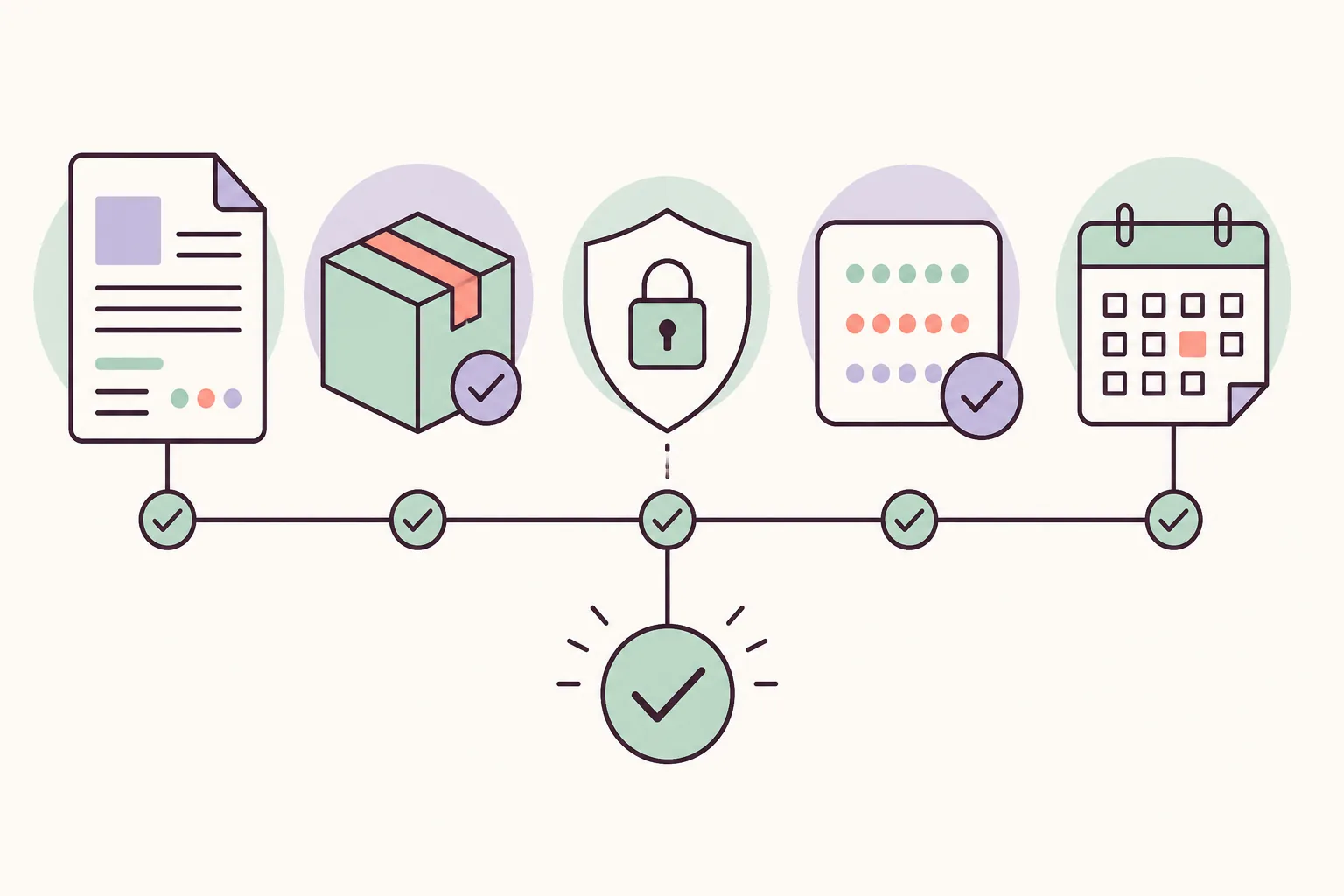
The same decision sequence works for Windows, Android, Linux and macOS, even though the package format changes. Change one variable at a time: first the emulator build, then any optional driver or graphics setting. This keeps a regression diagnosable instead of turning an update into an uncontrolled rebuild.
If you are moving from Stable to Nightly, treat it as a test installation rather than an automatic upgrade. A separate application folder is clearer on desktop systems. On Android, retain the backup and verify that the package source and signing context match the official release process before installing.
- 1. Open the official release record
Confirm the channel, release date, tag, platform, architecture and complete filename on the Eden release page.
- 2. Back up user data
Copy saves, configuration and controller profiles outside the application directory, then keep the previous working package.
- 3. Download the matching package
Use the official release page or its verified project download route. Do not guess a CDN filename or trust a mirror.
- 4. Install or extract the new build
Replace the application files only after Eden is closed; use a separate folder when testing Nightly or an uncertain build.
- 5. Test before cleanup
Launch Eden, check controls and graphics, load one lawful game backup, test saving, and keep the old build until the result is reliable.
How to install game updates or DLC in Eden
A game update is not the same as an Eden Emulator application update. If your question is how to install updates on Eden Emulator, first identify which of those two actions you mean. Updating Eden changes the emulator program. Installing an update or DLC file changes content for a specific game and belongs to the game-management workflow.
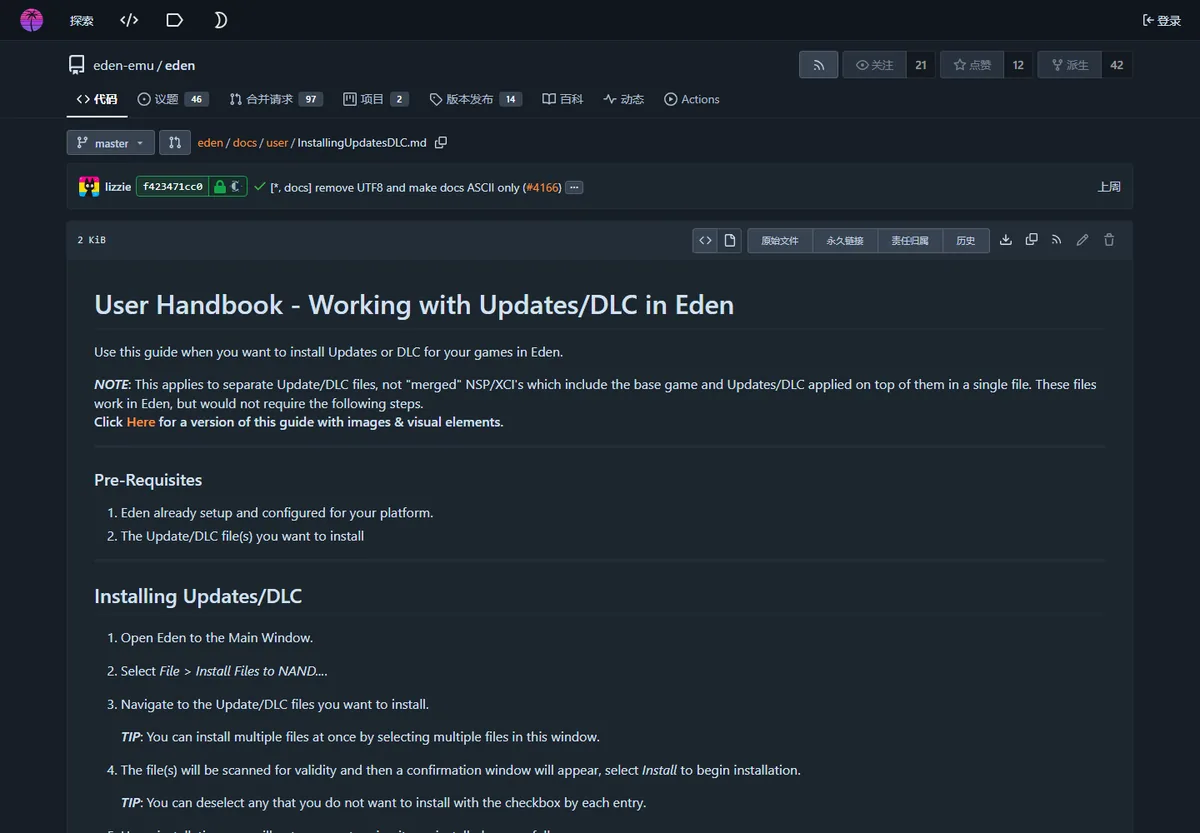
The official Eden user handbook describes a separate-file workflow: open Eden, choose File > Install Files to NAND..., select the update or DLC file, review the validation and confirmation dialog, and install only the content you are entitled to use. This applies to separate update/DLC files, not merged packages that already contain the base game and content. Read the official Installing Updates/DLC guide for the current menu wording and limitations.
If an update makes a game disappear, freeze or show a black screen, check the base-game and update relationship, the game version, the exact Eden build and the legal system data before reinstalling everything. Do not solve a missing update by downloading a ROM, key or firmware bundle.
Platform-specific update notes
The right package depends on the target platform, not just the device brand. Confirm the architecture and extension on the release record before starting. A package that is valid for Windows cannot be copied into a Linux or Android installation, and a metadata file such as .zsync is not the application itself.
On desktop systems, side-by-side folders make rollback easier. On Android, use the matching APK variant and avoid leaving broad unknown-source permissions enabled. On macOS, expect normal Gatekeeper checks after replacing the application. On Linux, preserve executable permissions and keep the prior AppImage until the new one launches successfully.
| Platform | Typical package | Practical update check |
|---|---|---|
| Windows | ZIP | Extract the complete package; do not run a lone executable from the archive |
| Android | APK | Match the variant and device architecture; preserve data before installing |
| Linux | AppImage | Keep the old AppImage and confirm executable permissions |
| macOS | DMG | Replace the app carefully and review Gatekeeper prompts |
If Eden stops working after an update
Start with the smallest reversible change: close Eden, restore the previous application build and test the same game, driver and settings. Do not immediately delete saves, shader caches and configuration together because that removes evidence and can create a second problem. If the old build works again, compare the two full build identifiers and report the regression with the exact steps.
If both builds fail, the update may not be the only cause. Check whether the package was fully extracted, whether the operating system quarantined a file, whether the graphics driver changed, and whether the issue is limited to one game or one controller. Record the CPU, GPU, driver, operating system, game version, Eden filename and error text before asking for help.
A newer Nightly is not automatically better for every device. Use Stable for predictable everyday testing; use Nightly when a documented fix or controlled experiment justifies the extra risk. The old working package is part of the troubleshooting plan, not clutter to delete on the first successful launch.
- Rollback the application before resetting user data.
- Retest with the same game, driver and settings.
- Check whether the issue affects one title or the whole application.
- Record both the working and failing build identifiers.
- Change only one driver, build or graphics setting at a time.
Official sources and version limits
For release records, use the Eden Stable releases and Eden Nightly releases pages. For project identity and announcements, start at the official Eden website. This independent wiki links to those first-party sources and does not host emulator binaries.
No permanent direct-file URL, file size, safety scan or universal latest claim is made here. If the official release record changes, use its current package and release notes, then repeat the backup, installation and test sequence. A page date tells you when this guide was reviewed; it does not replace the official release record.
The page is intentionally separate from the Eden download center, the Nightly build guide, and the first-launch setup guide. Those pages answer selection and installation questions; this guide focuses on the controlled update and rollback decision.
Eden Emulator update FAQ
Does Eden Emulator update itself automatically?
Do not assume a universal automatic updater. Check the official Stable or Nightly release record, back up your data and install the matching package through the documented project route.
How do I update Eden Emulator on PC?
Open the official release page, download the ZIP for your Windows or Linux architecture, close Eden, back up user data, extract or replace the complete application package, then test before deleting the old build.
How do I install updates on Eden Emulator?
If you mean the emulator application, follow the release-and-backup workflow on this page. If you mean a game update or DLC, use the separate File > Install Files to NAND workflow for a lawful update file.
Can I switch from Stable to Nightly?
Yes, as a controlled test. Keep a backup and, where possible, use a separate application folder so returning to Stable does not require deleting working settings or saves.
Should I delete the old Eden build after updating?
Not immediately. Keep the previous package until Eden launches, a known game backup loads, controls work and saving remains reliable on the new build.