
Quick answer
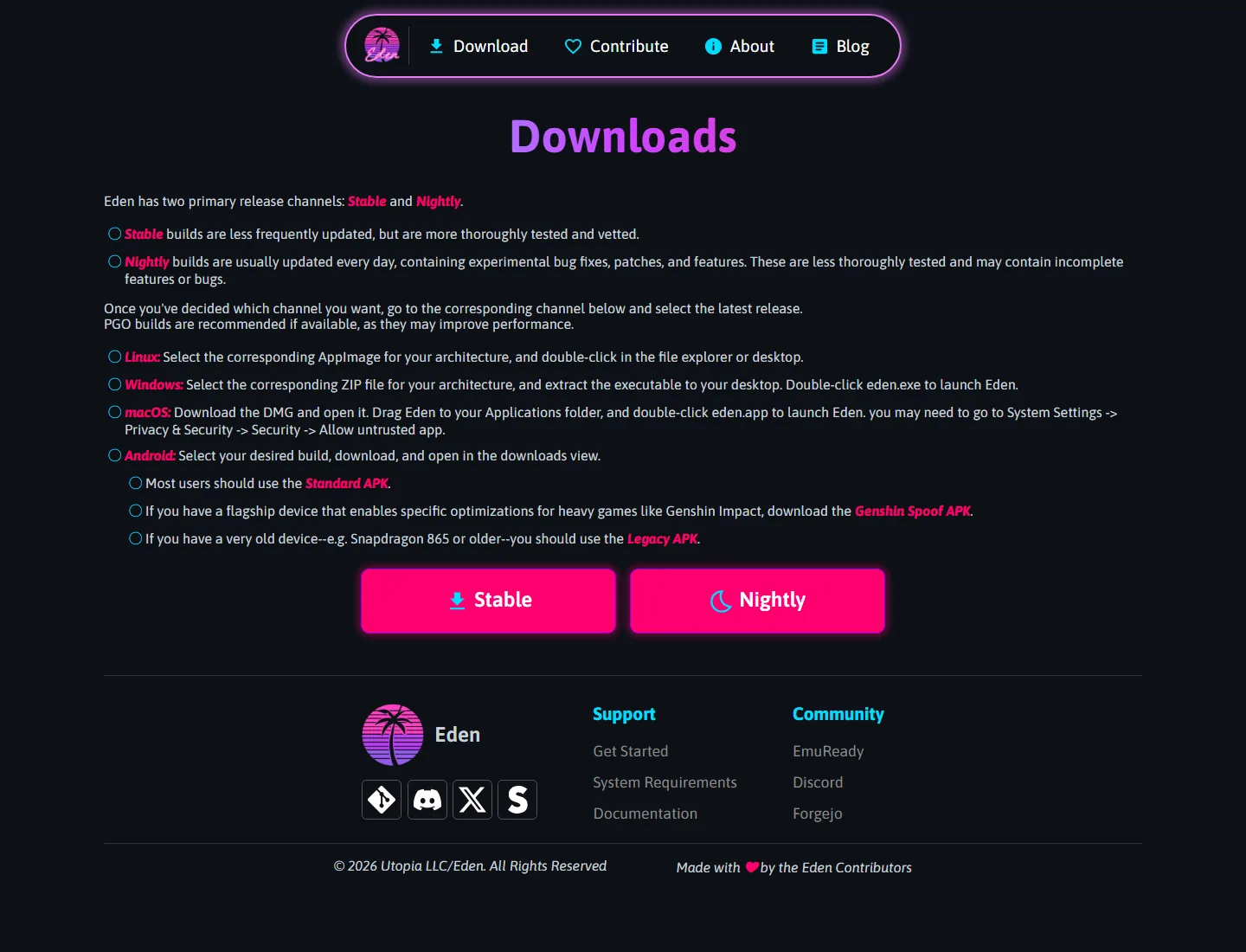
If you want the short version, download the Linux AppImage from the correct official release host, confirm the filename matches the build you intended to get, make it executable with chmod +x, and run it. For most recent Intel and AMD desktop or laptop systems, the best default choice is the Stable amd64 clang PGO build. That is the normal starting point for an Eden Linux download in the United States market.
Linux packages for Eden are AppImages, which means you do not install through a distro package manager first. Be careful not to grab the .zsync file by mistake. A .zsync file is update metadata used by some AppImage update tools; it is not the application itself and it will not launch the emulator.
Verified versions
Verified on August 16, 2026: the current Stable release is Eden v0.2.1, published June 2, 2026. The current latest Nightly is Eden Nightly - Aug 21 2026, tag v1787336654.5c54abf353, published August 15, 2026. This page is independent and is not affiliated with or operated by the emulator project.
For a mainstream desktop Linux system, the specific Stable file verified here is Eden-Linux-v0.2.1-amd64-clang-pgo.AppImage, size 69,276,651 bytes, with verified HTTP 200 availability at https://stable.eden-emu.dev/v0.2.1/Eden-Linux-v0.2.1-amd64-clang-pgo.AppImage. Filename and source matching matter because AppImages are self-contained; if either differs, re-check before you run it.
Choose the right AppImage
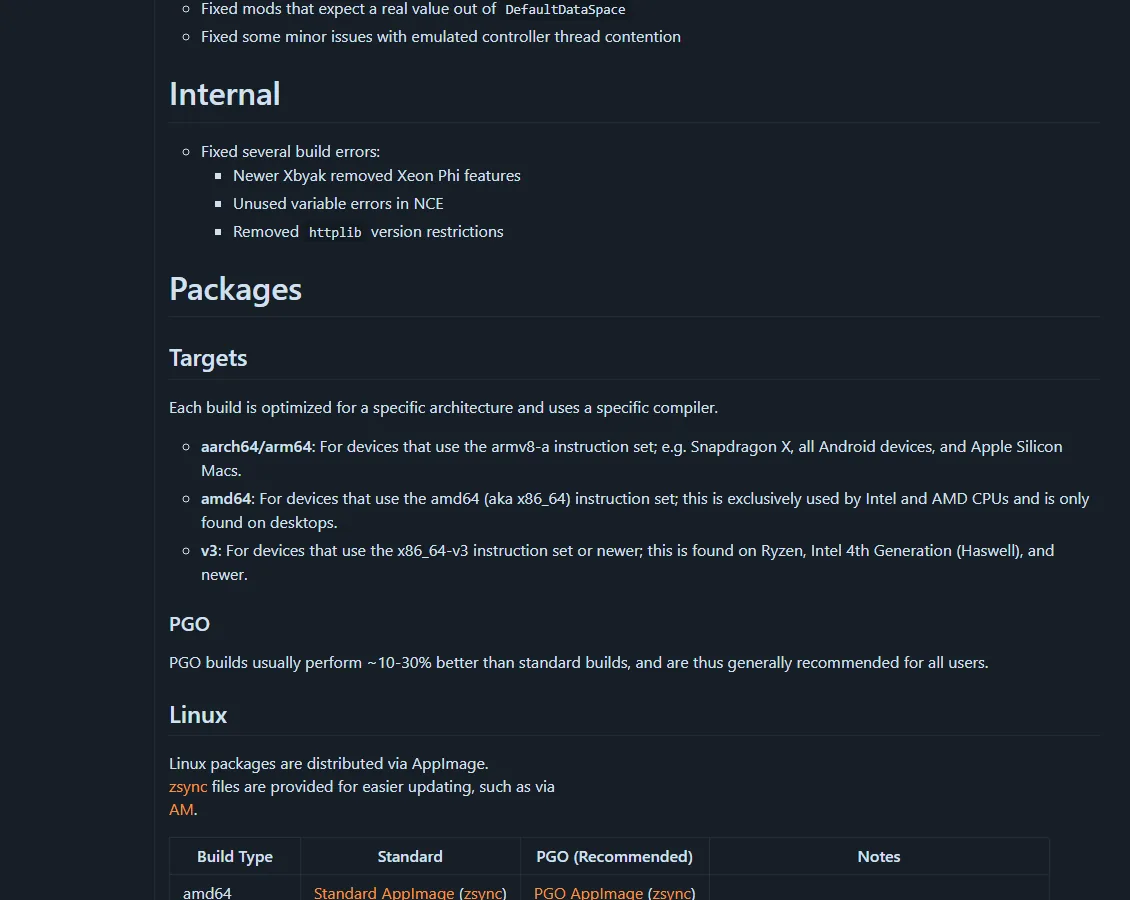
The main choice is not just Stable versus Nightly. You also need the AppImage that matches your hardware target. On Linux, Eden commonly publishes variants for newer x86-64 systems, older x86-64 systems, ARM64 systems, and Steam Deck-specific tuning. Picking the right build reduces startup issues and keeps performance expectations realistic.
For most people, amd64 clang PGO is the correct answer. Use a legacy amd64 build only if your older CPU does not play well with the standard build. Use aarch64 only on ARM64 Linux hardware. For Valve handhelds, prefer the dedicated Eden Steam Deck AppImage when the release provides one, especially on Nightly where device-targeted fixes may land first.
| Build | Best fit | Recommended variant |
|---|---|---|
| amd64 | Most modern Intel/AMD PCs | Clang PGO AppImage |
| Legacy amd64 | Older x86-64 CPUs | Legacy Clang PGO AppImage |
| aarch64 | ARM64 Linux devices | AArch64 AppImage |
| Steam Deck | Valve Steam Deck | Steam Deck Clang PGO AppImage |
Install steps
After downloading the AppImage, verify that the filename, architecture, and release channel match what you intended. On a modern Intel or AMD system, that usually means checking for something like Eden-Linux-v0.2.1-amd64-clang-pgo.AppImage rather than a legacy, ARM64, Steam Deck, or .zsync file. Keep Stable and Nightly in separate folders if you plan to compare them or roll back later.
Make the file executable, then run it from your file manager or terminal. The normal command flow is straightforward:
chmod +x Eden-Linux-v0.2.1-amd64-clang-pgo.AppImage
./Eden-Linux-v0.2.1-amd64-clang-pgo.AppImage
If your system throws a FUSE-related AppImage error, install the distro-supported FUSE package or compatibility layer that your distribution documents. If that still does not work, AppImage can sometimes be used through an extract fallback, but treat that as a cautious workaround rather than your first choice because it is less clean than running the signed release artifact directly.
Steam Deck setup
For Eden Steam Deck, switch to Desktop Mode before downloading and launching the emulator. That gives you a conventional Linux file manager, terminal access, and a clearer way to manage executable permissions. When a Steam Deck-specific AppImage exists, it is the better first test than a generic desktop build because it is targeted to the Deck hardware profile.
The current Nightly record is Eden Nightly - Aug 21 2026, tag v1787336654.5c54abf353. This freshness pass could not re-verify an anonymous Steam Deck package URL or file size, so use the official Nightly release record instead of a cached filename.
Once the AppImage runs in Desktop Mode, you can decide whether to add it to your launcher workflow. The practical rule is simple: validate performance, Vulkan behavior, and input mapping first, then build convenience around a version that already works.
For the dedicated Steam Deck workflow, continue with the Eden Emulator on Steam Deck setup and troubleshooting guide, which covers verified Deck downloads, EmuDeck shortcuts, 30 FPS reports and black-screen checks.
Troubleshooting
Most Linux startup failures come from one of four causes: the wrong architecture, a missing execute bit, an AppImage FUSE dependency issue, or a graphics stack problem. Start with the basics before assuming the emulator itself is broken. Re-check the filename, confirm you launched the real .AppImage, and make sure the release channel you picked is appropriate for your use case.
Graphics problems usually point to Vulkan support or an outdated driver stack. On desktop Linux, update to your distro's current graphics driver path for your GPU vendor, then test again. On Steam Deck, compare a Stable build and the latest Nightly if a game boots on one but not the other. Do not assume every game will work equally well; compatibility varies by title, driver state, and emulator build.
Safe source and legal boundaries
For safety, download only from the project's known release hosts and confirm the file path matches the version you meant to use. In this guide, the verified examples point to the official stable and nightly release domains. Treat mirror sites, repacks, or renamed archives with caution, especially if they package extra installers or claim modified performance builds. This site is independent and not official, so always verify the final source before executing a download.
Legal boundaries are straightforward. The emulator application itself is one thing; commercial game files, decryption keys, and console firmware are separate materials that carry their own legal and ownership requirements. This guide does not provide ROMs, keys, firmware, or instructions for bypassing those boundaries. Use only content you are legally entitled to use, and keep your setup limited to your own lawful materials.
Linux FAQ
Is Eden Emulator Linux available as a native package manager install?
The verified Linux releases covered here are AppImages. For this guide, the expected install path is downloading the correct AppImage, marking it executable, and running it directly.
What is the best build for a normal desktop PC?
For most modern Intel and AMD systems, start with the Stable amd64 clang PGO AppImage. It is the safest default unless you know you need a Nightly, a legacy amd64 build, or an ARM64 build.
What does the .zsync file do?
A .zsync file is update metadata used by compatible AppImage update workflows. It is not the emulator and will not launch Eden by itself.
Should I use Stable or Nightly on Steam Deck?
Start with Stable if you want the most predictable baseline. Use the Steam Deck Nightly AppImage when you need a newer fix, but keep your older working AppImage so rollback is immediate.
Can this guide provide games, keys, or firmware?
No. This site does not provide ROMs, encryption keys, firmware, or bypass instructions. Keep your setup within your own legal ownership and local law.