
Quick answer: what makes a game report useful?
A report is worth using when it names the exact Eden build, the game version or update, the CPU or SoC, the GPU and driver, the operating system, and what was actually tested. “Playable” without that context is a starting signal, not a promise that the same Switch game will boot or stay stable on your device.
Use the Eden compatibility guide for the meaning of status labels, then use this page to compare reports for a specific title. The separate Eden games guide covers adding and organizing your own files; this page does not provide games or downloads.
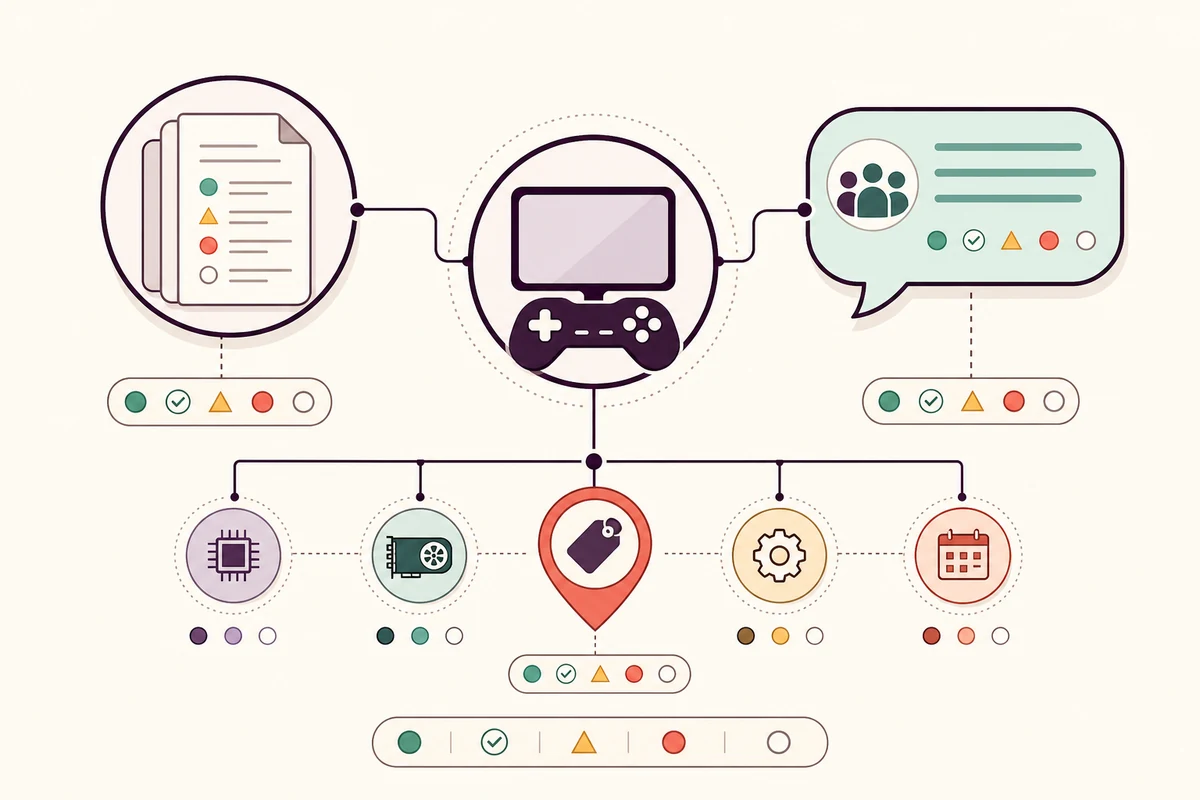
| Report signal | What it tells you | How to use it |
|---|---|---|
| Exact Eden tag | Which emulator code was tested | Prefer a report close to your Stable or Nightly build |
| Game version and update | Which content combination was loaded | Match base game, update and DLC before comparing results |
| Device and graphics driver | The hardware and rendering stack behind the result | Treat a different GPU, SoC or driver as a new test case |
| Test scope and notes | Whether the result reached gameplay, a menu or only a boot screen | Do not turn a partial test into a whole-game verdict |
Where to find evidence for Switch games on Eden
Begin with the project's official site and public release records. These sources establish which Stable or Nightly build exists, but they are not a game-by-game guarantee. A project release page can tell you the software version; it cannot prove that a title works on every driver or device.
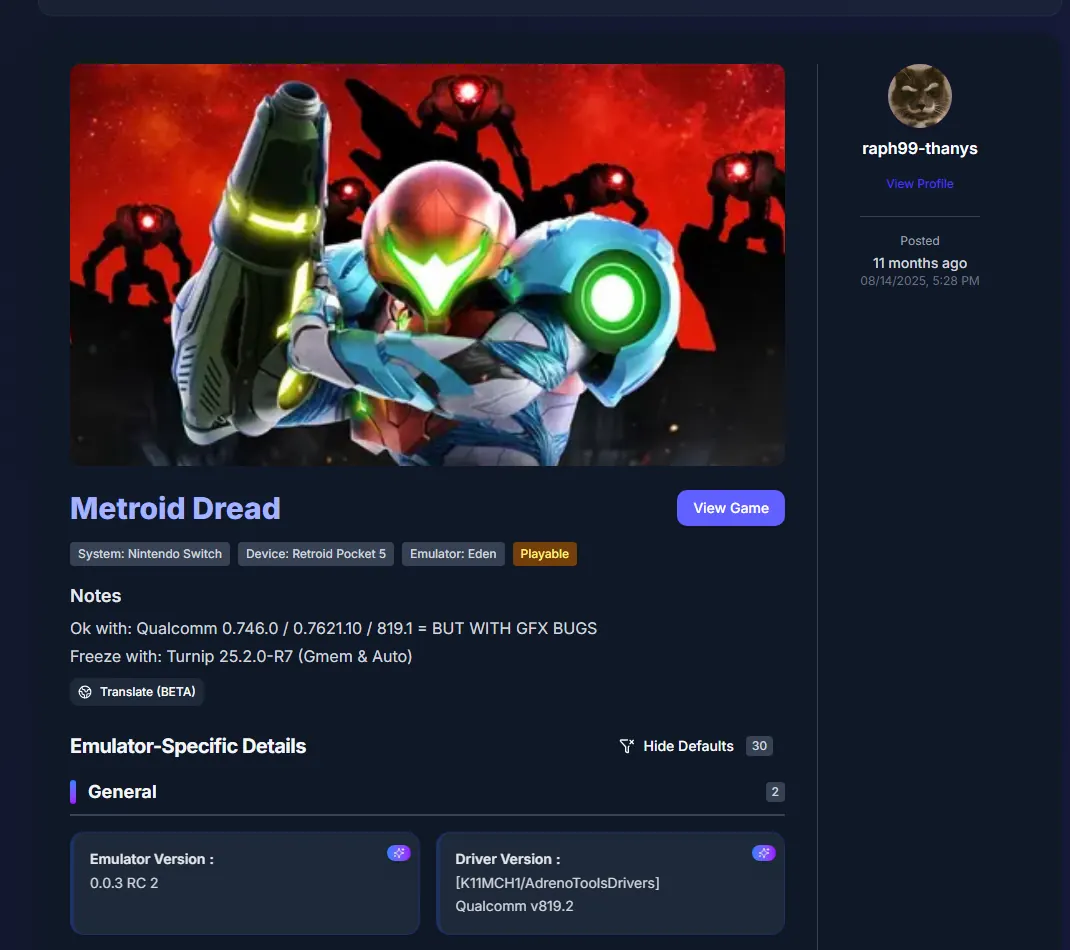
Community databases such as this EmuReady report example add practical observations. Read the detail fields, warnings and tested configuration instead of copying only the status badge. When two reports disagree, compare their build, update, driver and test scope before changing settings.
- Official release records: confirm the exact Stable or Nightly tag and publication date.
- Community compatibility reports: compare configuration fields, warnings and test notes.
- Your own log: record what happened after reproducing the same baseline.
- Issue discussions: use them as troubleshooting leads, not as proof of universal support.
Read compatibility labels without overpromising
Labels compress a test into a quick decision, but different sites and users may apply them differently. Look for the observable behavior behind the label: boot, menus, a save, a particular scene, a crash, missing graphics or a performance limit. A game can be technically playable and still unsuitable for your target resolution or frame rate.
Do not rank a game from the badge alone. A “works” result on a current desktop driver may be less relevant to an Android device than a more cautious report from the same SoC and driver family. Keep the original test date and build with your notes so later updates can be compared fairly.
| Common label | Usually means | Question to ask next |
|---|---|---|
| Playable | The tester reached meaningful gameplay under stated conditions | Was the same scene, update, driver and build tested? |
| Boots | The title opened, but the test may not have reached gameplay | Does it pass menus, loading, saves and the problem area? |
| Issues | A known visual, audio, input, stability or performance problem remains | Is the issue tied to a setting, driver, update or emulator regression? |
| Unplayable | The tester could not reach a usable state in that setup | Was the failure reproduced with a complete dump and matching system data? |
| Untested | There is no usable report for the relevant configuration | Can you create a minimal baseline test and document it? |
Match the report to your build and hardware
Version matching is the first filter. The official release records currently show Stable Eden v0.2.1 and the latest checked Nightly as Eden Nightly - Aug 21 2026, tag v1787336654.5c54abf353. Nightly builds change quickly, so treat a dated tag as part of the test result and verify the release record again before filing a regression.
Hardware matching is equally important. On Windows and Linux, note the CPU, GPU model and driver; on Android, note the SoC, Android version, GPU driver package and thermal state. A report from a different renderer or driver can explain a different result even when the game version is identical.
| Context field | Record it as | Why it changes the conclusion |
|---|---|---|
| Eden build | Channel, date and full tag | Code changes can fix or regress a title |
| Game content | Base version, update and DLC state | Different content can load different code paths |
| Hardware | CPU or SoC, GPU and memory | Emulation headroom and driver behavior vary |
| Graphics stack | Driver version and renderer or API | Visual bugs and crashes can be driver-specific |
| Test scope | Boot, menu, save, scene and session length | A short launch test cannot establish long-session stability |
A five-step test for your own Switch game backup
Use one known title and change one variable at a time. The goal is a reproducible observation, not a promise that every Switch game for Eden Emulator will behave the same way. Back up saves before changing builds or installed content.
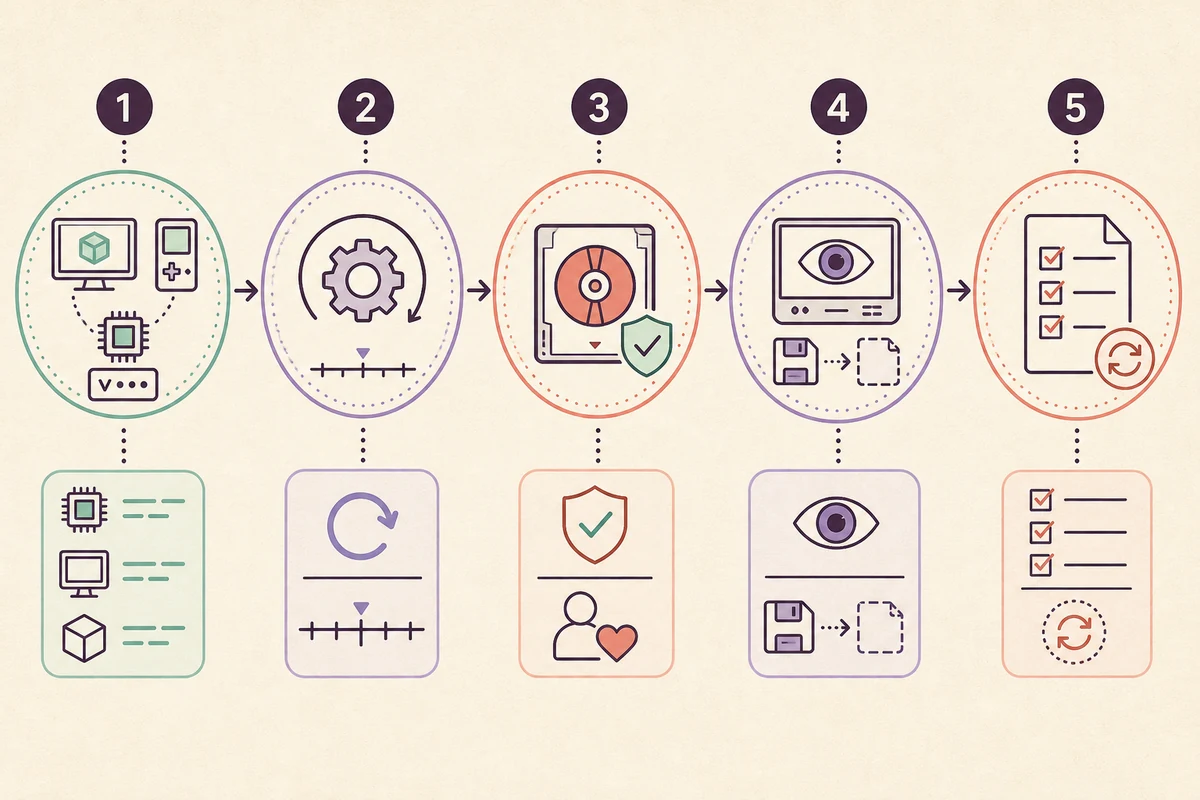
- 1. Establish a clean baseline
Launch the verified Eden build, confirm keys and matching firmware from your own hardware, and make sure the emulator opens before loading the game.
- 2. Match the content version
Record the base game version and any installed update or DLC. Test the base title first when possible, then add optional content one change at a time.
- 3. Record the device context
Write down the operating system, CPU or SoC, GPU, driver, renderer, resolution and relevant performance settings.
- 4. Test meaningful checkpoints
Go beyond the boot logo: reach a menu, create or load a save, visit the scene mentioned in a report and observe stability for a useful session.
- 5. Report the result precisely
Use a neutral status, include the exact tag and content versions, describe reproducible symptoms, and attach a log or screenshot only when it does not expose private data or copyrighted material.
Turn a test into a useful compatibility note
A concise report helps the next reader more than a confident one-line verdict. Include the date, Eden channel and full tag, game version, update or DLC state, device, driver, renderer, tested checkpoint and exact symptom. Say whether the result was reproduced after a clean configuration or only after custom settings.
When a newer build changes the result, keep both observations instead of silently replacing the old one. Link readers to the official release record and the relevant community report, explain what you verified yourself, and avoid calling a title “guaranteed,” “officially supported” or “safe to download” when the evidence does not establish that claim.
- Date and full Eden tag
- Base game, update and DLC versions
- Operating system, CPU or SoC, GPU and driver
- Renderer, resolution and important settings
- Checkpoint reached, session length and reproducible symptom
Keep the compatibility search on the lawful side
Eden is an emulator application, not a store for Switch games. Use only backups and system data that you are legally allowed to create and use. The game library guide explains folder organization and loading; the keys and firmware guide explains the prerequisites without supplying protected files.
Queries such as “where to get games for Eden Emulator” describe a different, high-risk download intent and are not a reason to publish a download page. This guide intentionally avoids ROM, NSP, XCI, keys, firmware and third-party installer links.
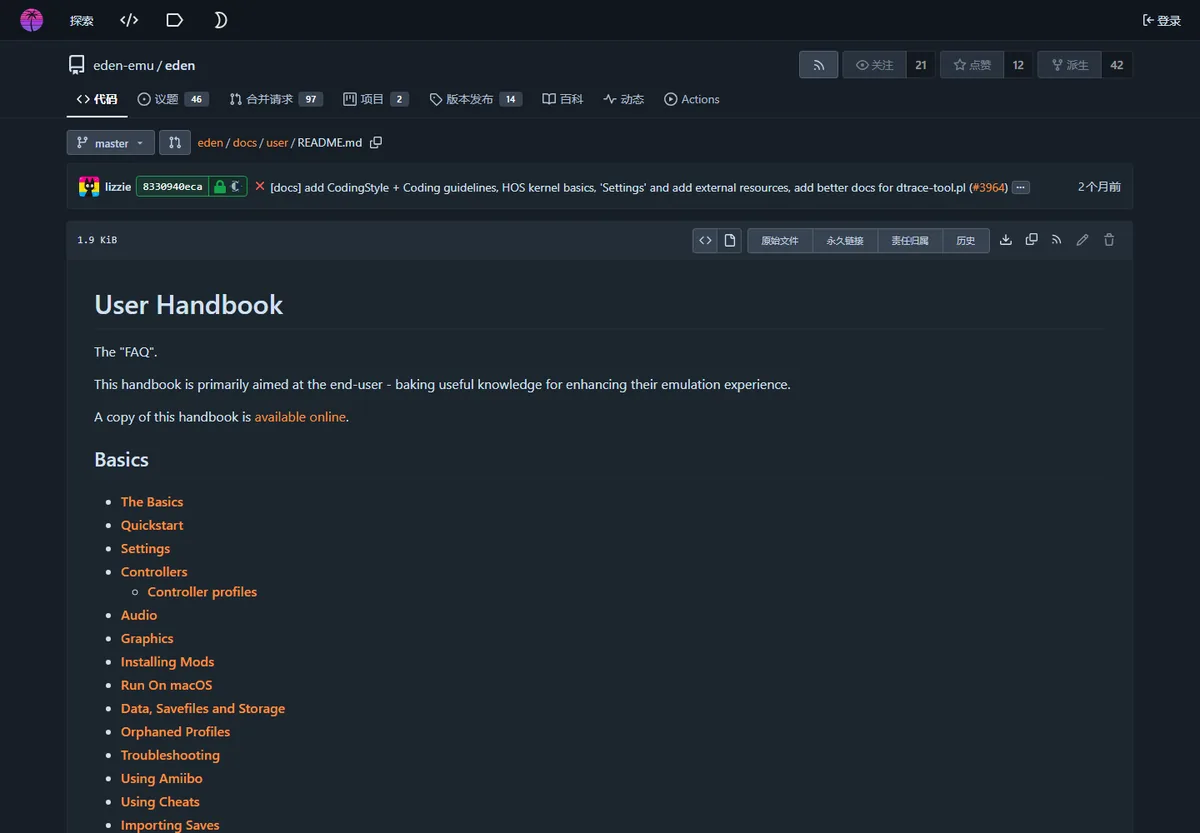
- Use official Eden release records to verify emulator builds.
- Use your own lawful game backup and system data.
- Do not treat a compatibility report as a game download source.
- Remove private paths, account data and sensitive logs before sharing a report.
Switch games for Eden Emulator FAQ
What Switch games work on Eden Emulator?
There is no universal answer for every device. Use a report that matches the Eden build, game version, hardware, graphics driver and tested scope, then reproduce the result with your own lawful backup.
Is there an official Eden Emulator compatibility list?
The official project provides Eden releases and documentation, while community resources such as EmuReady provide game reports. A community status is not an official guarantee, and every result still needs its configuration context.
Why can a game work for someone else but fail for me?
Eden results can change with the emulator tag, base game update, CPU or SoC, GPU driver, renderer, settings and the part of the game that was tested. Compare those fields before assuming the report is wrong.
Should I use Stable or Nightly when checking a compatibility report?
Use the channel and full tag that the report names. Stable is easier to reproduce over time, while Nightly changes more often; do not compare a Nightly result to Stable without recording the difference.
Does this page provide Switch games, ROMs, keys or firmware?
No. This is an evidence and testing guide. It does not provide games, ROMs, NSP/XCI files, keys, firmware or download mirrors. Use only files and system data you are legally allowed to use.
What should I include when reporting a game problem?
Include the date, full Eden tag, base and update versions, device, operating system, GPU or SoC, driver, renderer, checkpoint, session length and exact symptom. Remove private paths and sensitive data from logs before sharing them.