How to set up a controller on Eden Emulator: quick steps
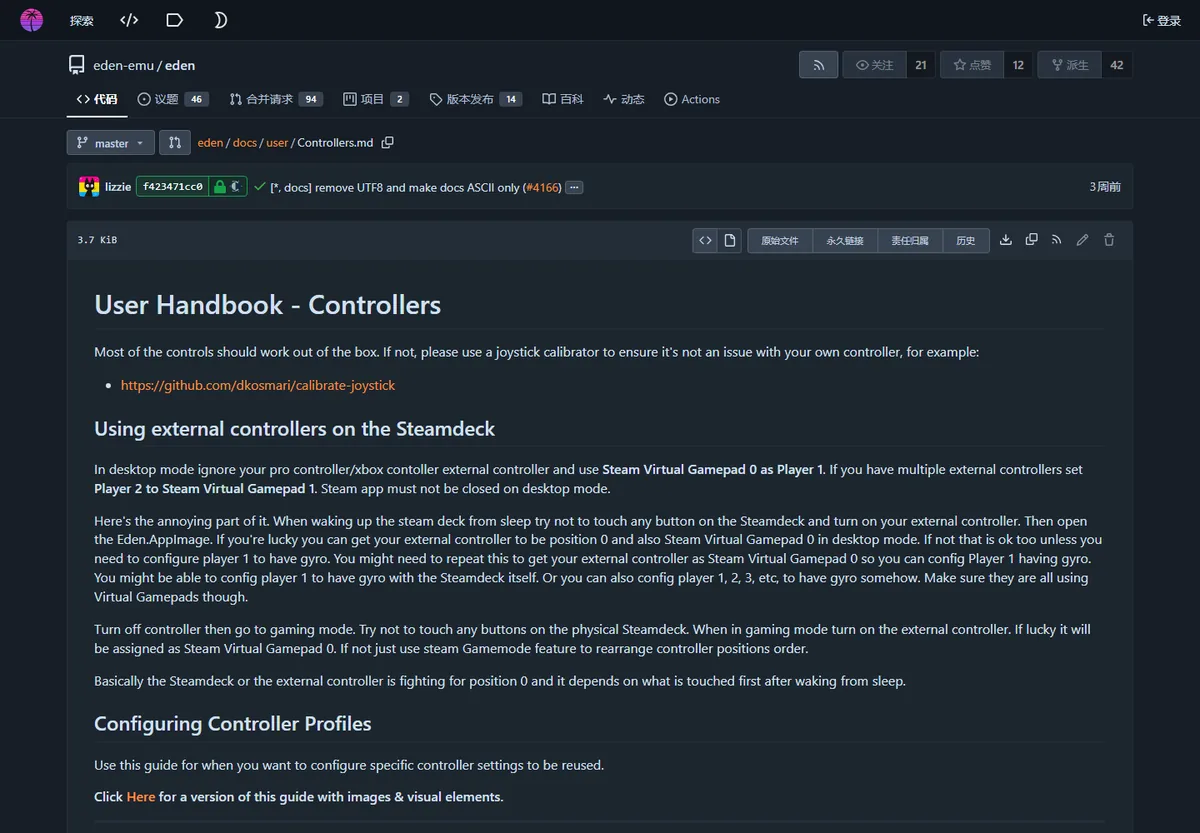
Most controllers should work without extra drivers when the operating system already recognizes them. Eden's official controller handbook recommends checking the physical controller with a joystick calibrator when input looks wrong, because a drifting stick or missing axis can be outside the emulator.
Use a wired connection for the first test. It removes Bluetooth pairing, battery and remapping software from the diagnosis. After the controller works in Eden, reconnect wirelessly and confirm that the device name and Player 1 assignment stay the same.
- Connect and verify the controller
Confirm Windows, Linux, macOS, Android or SteamOS can see button and stick input before opening Eden.
- Open Controls
Launch Eden, open Emulation → Configure, then select Controls from the left menu.
- Choose Player 1 and the device
Select the intended gamepad instead of an inactive duplicate, virtual device or disconnected Bluetooth entry.
- Map and test every input
Assign face buttons, sticks, triggers, shoulder buttons, Plus, Minus and directional input, then test them in a game menu.
- Save a named profile
Select New, give the working layout a descriptive name and keep it as a rollback point before experimenting.
Xbox, PS5, Switch Pro and Steam Deck controller support
Eden receives input through the platform's controller layer, so support is not only about the logo on the gamepad. A controller can appear through SDL, Steam Input, a native operating-system driver or a remapping tool. Two entries with similar names may represent the same physical device, and selecting both can cause double input.
Start with one controller and one input layer. Close DS4Windows, Steam Input remapping or vendor software temporarily if two devices appear or a button activates twice. Add those tools back only when they solve a specific problem such as unsupported Bluetooth behavior or a required custom layout.
| Controller | Best first connection | What to verify |
|---|---|---|
| Xbox controller | USB or native Xbox Wireless | One device entry, correct triggers and no duplicate Steam Input mapping |
| PS5 DualSense / PS4 DualShock | USB before Bluetooth | Buttons, analog triggers, motion availability and whether a remapper creates a second pad |
| Switch Pro Controller / Joy-Con | USB or stable Bluetooth pairing | Button labels, stick calibration, combined Joy-Con mode and motion support |
| Steam Deck or external Deck controller | Steam Virtual Gamepad | Player order, Virtual Gamepad 0 assignment and Steam remaining open in Desktop Mode |
Create global and per-game controller profiles
A profile is useful after a layout works because it separates a known baseline from later experiments. In Eden, configure the controller under Emulation → Configure → Controls, select New and save the layout with a name that identifies the device and connection, such as DualSense USB or Xbox Bluetooth.
For a game-specific profile, right-click the legally owned game in Eden's library, open Properties, find the Input Profiles tab and assign the saved profile to the intended player. The official handbook notes that the window may need to be resized or its tab arrows used before Input Profiles becomes visible.
Keep the global profile simple. Use a per-game profile only when a title needs a different controller mode, button layout or handheld/docked behavior. If every game has a custom profile, troubleshooting becomes harder because the visible global settings may not be the settings actually in use.
- Name profiles by controller and connection type.
- Keep one default profile that is known to work.
- Apply per-game profiles only where the difference is necessary.
- Re-test profiles after a major OS, Steam Input or Eden update.
- Back up configuration before deleting or recreating several profiles.
Fix an Eden Emulator controller not working
When Eden does not recognize a controller, identify the first layer that fails. If the operating system cannot see input, changing Eden mappings will not help. If the OS works but Eden shows no device, restart Eden after connecting the controller and temporarily disable duplicate virtual-device software. If Eden sees the device but a game does not respond, check the Player 1 assignment and any per-game profile.
Change one variable at a time. Re-pairing Bluetooth, updating drivers, switching Eden builds and replacing the profile simultaneously may make the controller work, but it will not show which change fixed it or how to recover when the issue returns.
| Symptom | Likely cause | First safe check |
|---|---|---|
| Controller is absent from Eden | Connected after launch, OS driver issue or unsupported layer | Verify input in the OS, connect by USB and restart Eden |
| Buttons activate twice | Physical and virtual controllers are both active | Disable one remapping or Steam Input layer and select a single device |
| Wrong button icons or A/B layout | Controller label and Nintendo-style mapping differ | Map by physical function and verify in a menu instead of trusting icons alone |
| Stick drifts or never reaches full range | Hardware calibration or dead-zone issue | Use an OS or trusted joystick calibrator before changing emulator sensitivity |
| Input lag over Bluetooth | Wireless interference, low battery or stacked input tools | Compare the same profile over USB, then remove unnecessary software layers |
| Only one game ignores input | Per-game profile, controller mode or game-specific behavior | Check Properties → Input Profiles and test the global profile |
PS5 and Xbox controller mapping tips
For a PS5 DualSense, begin over USB and map the standard buttons and sticks before testing motion. If a tool translates DualSense input into a virtual Xbox controller, Eden may show both the original device and the virtual device. Select one path and hide or disable the duplicate only through documented settings in that tool.
For an Xbox controller, verify that both analog triggers move independently and that Steam Input is not also translating the same device. If Eden displays Nintendo-style button functions, map by position and in-game action rather than assuming that the printed A/B/X/Y label always matches the expected Nintendo layout.
Audio can also change when a controller exposes a headset device. If game sound disappears after connecting a DualSense or another controller with audio support, check the operating system's output device before changing Eden's audio settings.
Steam Deck controller order and gyro setup
The official controller handbook recommends using Steam Virtual Gamepad 0 as Player 1 in Steam Deck Desktop Mode and keeping Steam open. With multiple external controllers, later players can use additional Steam Virtual Gamepad entries. After sleep, the Deck controls and an external controller may compete for position 0, so controller order may need to be rearranged in Steam Gaming Mode.
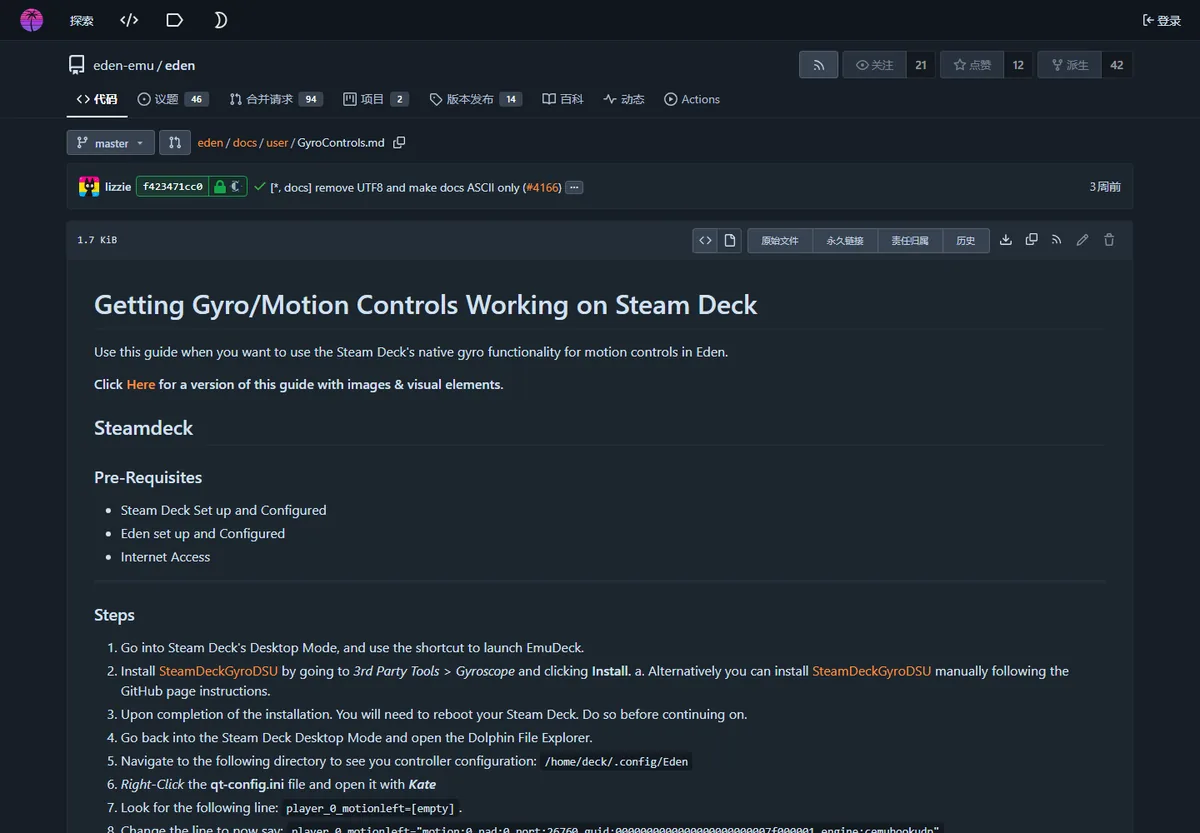
Gyro is a separate layer. Eden's official gyro guide documents SteamDeckGyroDSU and a CemuHook UDP motion entry in qt-config.ini. Follow the current official instructions carefully, back up the configuration file and do not paste a motion line from an unrelated emulator or an old guide without checking the port and player entry.
Test normal buttons and sticks before motion. If basic controls fail, gyro configuration adds another variable and will not repair the underlying device assignment.
Version, safety and troubleshooting boundaries
This controller guide was checked on August 16, 2026 against the official Eden documentation at commit ba9130fbf9. The official release API still listed Stable v0.2.1, while the latest verified Nightly was Eden Nightly - Aug 21 2026, tag v1787336654.5c54abf353. Controller menus and behavior can change, so compare the current handbook before reporting a regression.
A newer emulator build should not be the first controller fix. Preserve the working profile, record the device name and connection type, then test the same controller on Stable and Nightly only when release notes or an issue report suggest an input change. Keep the previous working package so rollback does not require deleting saves or configuration.
This page does not provide games, firmware, encryption keys or unofficial driver bundles. Use only legally owned software and trusted controller utilities, and do not disable operating-system security features merely to install an anonymous mapping package.
Eden Emulator controller FAQ
Does Eden Emulator support controllers?
Yes. The official handbook says most controls should work out of the box, but actual detection depends on the operating system, controller driver and selected input device.
How do I set up an Xbox controller on Eden Emulator?
Connect it, verify the OS sees it, open Emulation → Configure → Controls, select the Xbox device for Player 1, map every input and save a profile.
Can I use a PS5 controller with Eden Emulator?
A DualSense can work through the platform input layer. Test by USB first and avoid selecting both the physical controller and a virtual controller created by remapping software.
Why is Eden Emulator not recognizing my controller?
Confirm the controller works in the operating system, connect it before launching Eden, restart the emulator and temporarily disable duplicate virtual-device or Steam Input layers.
How do I save a controller profile in Eden?
Configure Controls, choose New, name the profile and save it. A saved profile can also be assigned to a specific game through its Properties and Input Profiles tab.
How do I use gyro on Steam Deck?
Follow the official Eden gyro guide for SteamDeckGyroDSU and the motion entry in qt-config.ini. Back up the file and verify normal controls before adding gyro.