
Does Eden Emulator work on Mac?
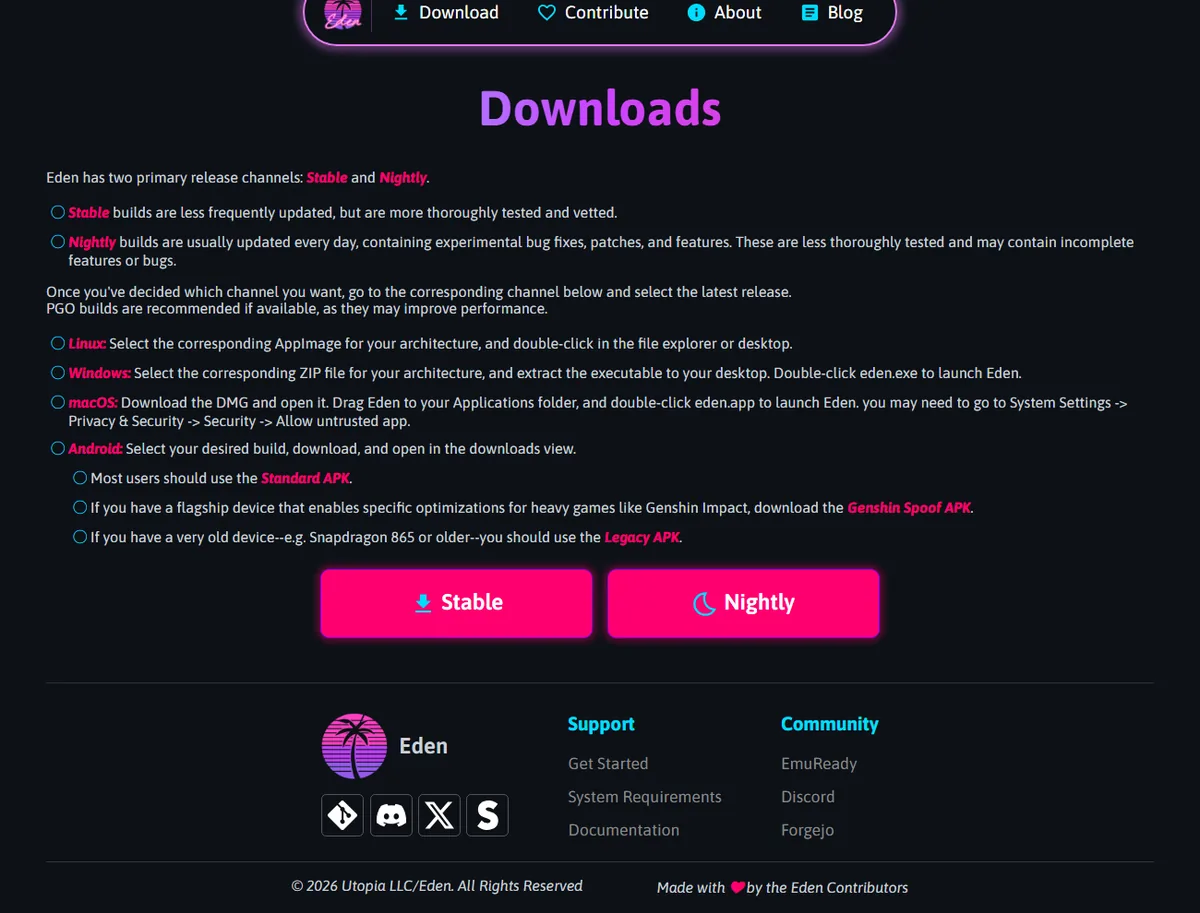
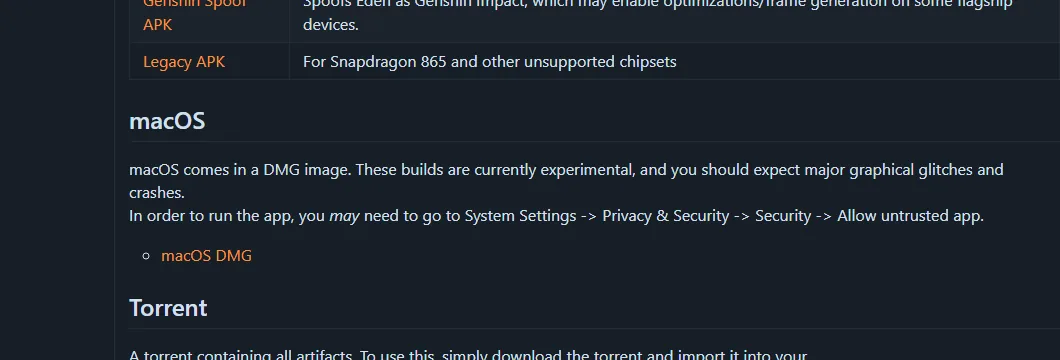
Yes, Eden provides a macOS DMG, but the project labels the macOS build experimental. It is not at the same maturity level as a polished native Mac game. The current release notes warn users to expect major graphical glitches and crashes, so a successful installation does not guarantee that every title will boot or render correctly.
For a first test, use Stable, keep the exact DMG filename, and try one legally dumped game with the default configuration. Do not change the Eden build, macOS version, game update, keys, firmware and graphics settings at the same time. A controlled test makes it easier to identify whether a problem belongs to the emulator, one game or the local setup.
- Use an Apple Silicon Mac; the v0.2.1 target notes say the macOS build is exclusive to Apple M-series CPUs.
- Back up saves and configuration before changing channels.
- Download from Forgejo or project-controlled Stable/Nightly domains.
- Use only your own lawful game backups, keys and firmware.
Current verified Eden Emulator Mac versions
The stable version verified on August 16, 2026 is Eden v0.2.1, published June 2, 2026. Its macOS package is Eden-macOS-v0.2.1.dmg. The project-controlled file returned HTTP 200 and a size of 24,259,461 bytes, about 23.1 MiB, when checked for this guide.
The latest Nightly checked on August 16, 2026 is Eden Nightly - Aug 21 2026, tag v1787336654.5c54abf353. The current audit could not verify an anonymous DMG URL or file size, so reopen the official Nightly release record before using a package.
| Channel | Verified build | macOS file | Best use |
|---|---|---|---|
| Stable | v0.2.1 | Eden-macOS-v0.2.1.dmg | First install and repeatable testing |
| Nightly | v1787336654.5c54abf353 | The latest Nightly checked on August 16, 2026 is Eden Nightly - Aug 21 2026, tag v1787336654.5c54abf353. The current audit could not verify an anonymous DMG URL or file size, so reopen the official Nightly release record before using a package. | Testing a documented recent fix with rollback available |
Eden Emulator Mac system requirements
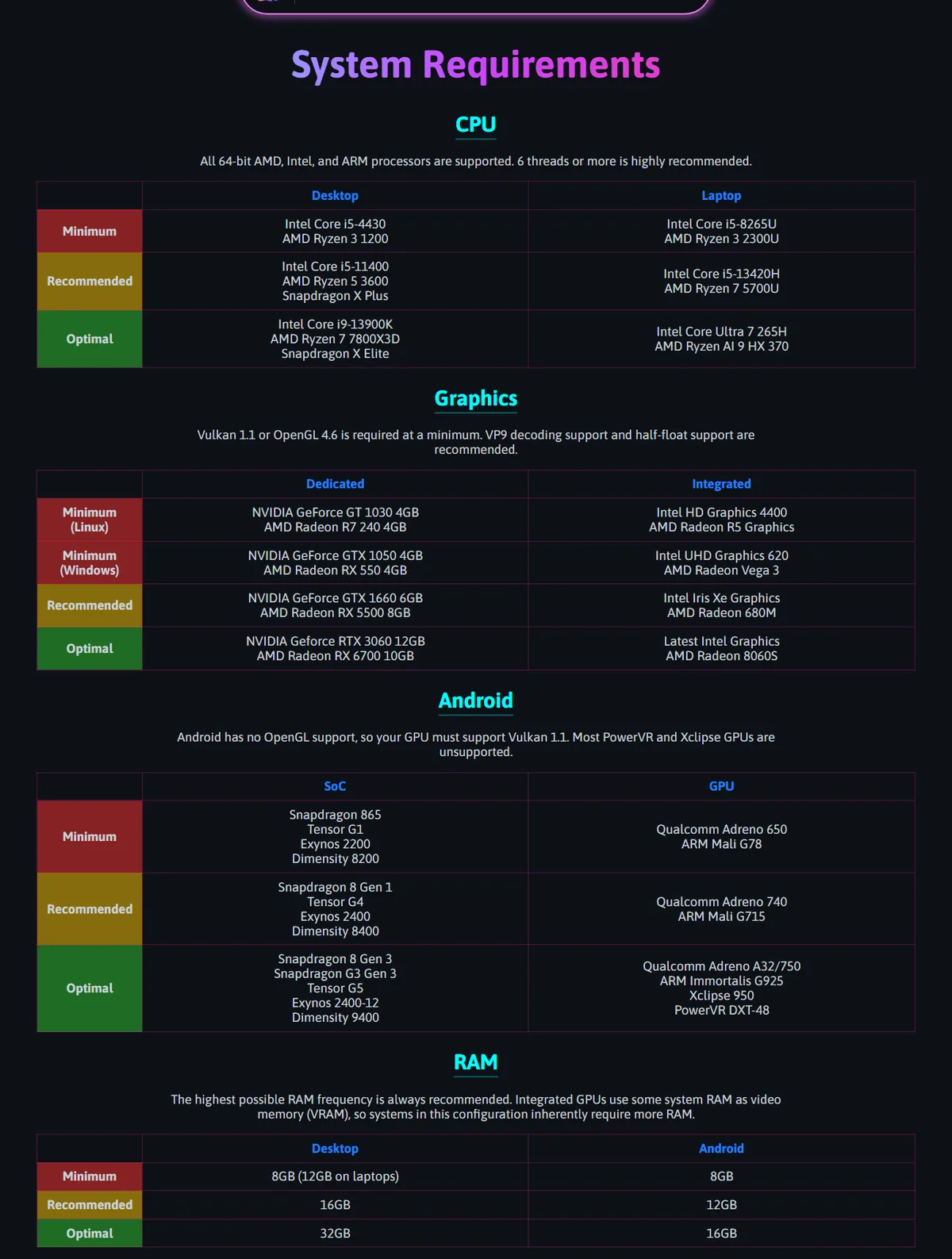
The v0.2.1 target notes say the macOS build is exclusive to Apple M-series CPUs. Apple Silicon is therefore the practical baseline; an Intel Mac should not be treated as supported merely because it can open a DMG file. Eden's general requirements page does not publish a separate Mac model chart, so model-specific claims should stay conservative.
For memory, the official desktop guidance lists 8 GB as minimum, 16 GB as recommended and 32 GB as optimal. Integrated graphics share system memory, so an 8 GB Mac can have little headroom after macOS and background applications take their share. Keep free storage for caches, close heavy apps and test at default settings before raising resolution or accuracy options.
| Check | Practical Mac guidance | Why |
|---|---|---|
| Processor | Apple M-series | The v0.2.1 target notes exclude Intel CPUs for macOS |
| Memory | 16 GB preferred; 8 GB cautious minimum | Unified memory is shared by macOS, Eden and graphics |
| Storage | Space for app, caches and lawful backups | A nearly full disk complicates updates and cache creation |
| macOS | A maintained version compatible with the Mac | Security controls and graphics behavior vary by release |
How to install Eden Emulator on macOS
A DMG is a disk image, not a permanent installation folder. Download the selected package, open it in Finder, and move Eden into Applications. Launching permanently from the mounted image can create confusing paths, repeated prompts or an app that appears to vanish after the image is ejected.
Keep the original DMG until the first successful launch, but avoid unidentified duplicate copies in Downloads. Label backups with channel, tag and date. Before moving from Stable to Nightly, preserve the previous app and configuration so a regression can be checked without deleting saves or rebuilding the entire setup.
- Verify the source and filename
Confirm the release record is on git.eden-emu.dev and the file is served by stable.eden-emu.dev or nightly.eden-emu.dev.
- Open the DMG
Double-click the disk image and wait for Finder to mount it.
- Move Eden to Applications
Drag eden.app to Applications instead of running it permanently from the image.
- Eject the image
After copying finishes, eject the DMG and launch Eden from Applications.
- Record the build
Keep the exact Stable version or Nightly tag in troubleshooting notes and backups.
Open Eden when macOS Gatekeeper blocks it
The official Eden instructions note that macOS may require approval in System Settings under Privacy & Security. A warning does not make a random mirror acceptable. First verify the source, filename and release tag, then use the normal macOS security workflow instead of disabling system protection globally.
Try opening Eden once from Applications so macOS records the blocked launch. Open System Settings, choose Privacy & Security, find the message about Eden, and use the available Open Anyway or approval control. The wording differs by macOS version. If the prompt names another application or the file came from an unrelated domain, stop and download again.
First launch, keys, firmware and games
Eden does not include games, keys or console firmware. Complete the legal keys and firmware setup with files you are allowed to use, then add one folder containing your own lawful backup. If the library is empty, verify that the file is not still inside ZIP, RAR or 7z storage and review the Eden games guide before changing graphics options.
Create a backup before importing a larger library or changing channels. Keep saves, configuration and game files in separate locations. If Nightly introduces a problem, restore the previous application first and keep user data intact. The setup guide explains a controlled update and rollback workflow.
- Start with one known lawful game backup.
- Match keys and firmware from the same system generation.
- Keep Stable and Nightly test notes separate.
- Never download commercial games, keys or firmware from emulator mirrors.
Performance and compatibility expectations on Mac
A fast Apple Silicon Mac does not guarantee that every game will work. Emulator compatibility depends on the exact Eden build, game version, update, firmware, graphics implementation and tested scene. Reaching a menu is weaker evidence than completing a gameplay session, and one user's result cannot establish support for every Mac model.
Begin with default settings and record one change at a time. If a game crashes, compare Stable and Nightly with the same game files and configuration. Close background applications and return resolution or accuracy changes to default. Use the compatibility guide to document build, Mac model, memory, macOS version and tested area.
| Symptom | First check | Next controlled test |
|---|---|---|
| App will not open | Source, Applications copy and Privacy & Security approval | Re-download the same verified build |
| Game missing | Keys, firmware and readable uncompressed file | Test one folder and one title |
| Graphical glitches | Experimental warning and default settings | Compare Stable with current Nightly |
| Crash after update | Exact old/new tags and unchanged user data | Roll back the app before deleting configuration |
| Low performance | Memory pressure and background apps | Use default resolution and change one setting at a time |
Update or roll back Eden on Mac safely
Treat a channel change as a controlled experiment. Before replacing the app, record the current version or Nightly tag, back up configuration and saves outside the application folder, and keep the previous application until the new build completes the same test. Do not combine an Eden update with a macOS update, a graphics-setting overhaul and a game update, because a changed result would have too many possible causes.
If the new build crashes or renders worse, restore the previous application first while keeping user data unchanged. Repeat the same title, scene and settings, then compare logs and behavior. Only after confirming that the application rollback changes the result should you consider resetting configuration. This order protects saves and produces better evidence than deleting every folder at once.
After rolling back, restart the Mac and repeat the same file and scene at least twice before drawing a conclusion. One successful or failed launch can be noise; repeated runs with identical conditions give a stronger basis for deciding whether to change settings, report a regression or return to the newer build.
- Record the exact old and new tags.
- Back up saves and configuration outside the app folder.
- Test the same game scene before changing another variable.
- Keep a known working Stable copy when experimenting with Nightly.
How to report a reproducible Mac problem
A useful report names the exact Eden tag, Mac model, Apple chip, memory, macOS version, game version, firmware generation and the scene where the problem occurs. State whether the same test works on Stable, current Nightly or a previous build. Describe what you expected, what happened, and whether the failure repeats after a clean restart without unrelated background applications.
Do not upload copyrighted game files, keys, firmware or personal save data to a public report. Share only logs and technical details that are safe to disclose, remove account names or local paths when necessary, and link to the official release tag used for the test. A concise reproducible sequence is more valuable than a broad statement that the emulator is slow or broken.
For graphics problems, add whether the issue begins in the main menu, while loading a save, or only in one scene. Note whether default resolution and accuracy were used and whether an external display, screen recorder or overlay was active. These details help separate startup, rendering and memory problems without sharing protected content.
Safe source and legal boundaries
edenemulator.wiki is an independent guide and is not the official Eden project. The selector reads public release metadata and points to project-controlled file domains; this site does not host or modify the DMG. If a button ever resolves elsewhere, use the complete Forgejo release page instead of trusting the unexpected destination.
An emulator download does not grant rights to copyrighted games, keys or firmware. Use only backups and system files you are legally permitted to create and use. Avoid pages that combine the emulator with ROM packs, preloaded games, keys or claims that every title is guaranteed to work.
Eden Emulator Mac FAQ
Is Eden Emulator available for Mac?
Yes. Eden publishes a macOS DMG, but the project describes it as experimental and warns about graphical glitches and crashes.
Does Eden Emulator Mac support Intel Macs?
The v0.2.1 target notes say the macOS build is exclusive to Apple M-series CPUs, so Intel Macs should not be treated as supported.
Should I use Stable or Nightly on macOS?
Start with Stable for repeatable testing. Use Nightly only for a documented recent fix and keep the previous application for rollback.
Why does macOS say Eden cannot be opened?
After verifying the official source and filename, use the per-app approval shown in System Settings under Privacy & Security. Do not disable Gatekeeper globally.
Does Eden Emulator include games or keys?
No. Eden does not include games, keys or firmware. Use only files and backups you are legally allowed to create and use.
Why does a game crash on a powerful MacBook?
Hardware speed is only one factor. The exact Eden build, game version, firmware, settings and tested scene can change the result, and macOS support is experimental.