
Quick answer: how to increase performance on Eden Emulator
Start with the default profile and one known scene from a game backup you are entitled to use. Record the Eden build, operating system, CPU or SoC, GPU, driver, renderer, resolution, refresh rate and whether the problem is low FPS, uneven frame pacing, shader stutter, heat or a crash. Repeat that same scene after each change.
This page covers performance diagnosis and reversible configuration. It does not host games, ROMs, keys, firmware or unofficial emulator packages. Use the verified download center for release sources, the Android requirements guide for mobile variants, and the Windows PC guide for platform packages.
- Measure the same scene, build and settings before and after a change.
- Treat stable frame pacing as a goal alongside the FPS number.
- Keep a backup and a known-good build before testing Nightly or a new driver.
- Change one variable at a time so a useful result can be reproduced.
Build a performance baseline before changing settings
A baseline prevents false improvements. Let the same game scene run long enough to pass the first menu, shader compilation burst and ordinary camera movement. Note the average feel, the worst hitch, audio behavior and whether input arrives consistently. A short menu can look smooth while a busy area exposes a CPU limit, a GPU limit or pipeline compilation.
If only one title is slow, compare a recent compatibility report tied to the same build and driver. If every title is slow, focus on the global graphics path, background load or thermal behavior.
| Observation | Likely boundary | First comparison |
|---|---|---|
| Every game has uneven frames | Global renderer, driver or thermal limit | Default profile, another renderer and a cool session |
| One game slows in a demanding area | Title, update or compatibility behavior | A second title and a report with the same build |
| Stutter is worst on first load | Shader or pipeline compilation | Repeat the scene after caches finish building |
| FPS falls after several minutes | Thermal or power limit | Temperature, charging state and power profile |
| Audio and input also slow | CPU scheduling or system load | Background processes and CPU headroom |
Use Eden graphics settings in a controlled order
The official Eden Graphics handbook describes options such as anti-aliasing, texture filters and anisotropy. These options trade image quality for GPU work; they do not replace a compatible driver or a fast enough CPU. Begin with the default renderer and change the least expensive setting that addresses the visible problem.
Resolution scale is often the clearest GPU test. Lower it temporarily and repeat the same scene. If frame pacing improves, the GPU or bandwidth path is under pressure. If there is no change, the bottleneck may be CPU emulation, shader compilation, a driver issue or a title-specific limit. Restore quality gradually after the cause is understood.
Anti-aliasing and sharpening filters can add work without fixing a CPU limit. FXAA is generally a lighter experiment than a high-quality option, while advanced filters such as FSR or device-specific SGSR should be treated as optional enhancements. Record the exact option name because labels and defaults can change between builds.
| Setting or condition | Safe first test | What the result suggests |
|---|---|---|
| Renderer or graphics API | Use the supported default, then test one alternative | A change points to driver or renderer compatibility |
| Resolution scale | Reduce it for one repeatable scene | Improvement suggests a GPU or bandwidth limit |
| Anti-aliasing | Disable extra AA while diagnosing | Improvement suggests shader or GPU cost |
| Texture filter | Use a fast default before quality filters | Image quality changes without fixing CPU limits |
| Anisotropy or enhancement | Keep optional enhancements off initially | Add them back only after stable pacing returns |
Reduce stutter from shaders and pipeline compilation
Shader stutter is a short hitch while a new effect is compiled. It may be most visible during a first launch, after a driver change, after an emulator update or when entering a new area. That pattern is different from a constant low frame rate. Let the scene finish its initial work, then repeat it before deciding that a setting failed.
If stutter remains after repeated passes, compare a default profile with one per-game profile. Close overlays, recording tools and browser tabs that consume CPU or GPU time. Capture the exact area, build, driver and whether the hitch repeats at the same effect. This turns a vague "Eden Emulator stuttering" report into evidence that can be compared with a community report or an official issue.

- First-run hitch that fades: allow the scene to compile and test again.
- Hitch after every effect: inspect shader, pipeline and driver behavior.
- Hitch after an update: compare the old build before deleting user data.
- Hitch with high system load: close overlays and background capture tools.
Platform notes for Windows, Android, Linux and Steam Deck
Performance depends on the whole platform path. On Windows, use the package that matches the CPU architecture, keep the GPU driver current and test a complete extracted build. The Windows guide explains AMD64, ARM64, PGO and standard packages; a compiler variant is not a universal FPS promise.
On Android, the device SoC, graphics driver, free storage and sustained temperature matter as much as the APK label. Use the Android guide to compare Standard, Legacy and Optimized variants, then test without charging or a heavy case when diagnosing heat. A phone can start smoothly and slow after several minutes without the emulator being permanently broken.
Linux and Steam Deck users should preserve executable permissions, select a matching AppImage and keep the power profile consistent. The Linux guide and Steam Deck guide cover platform-specific packages. Keep the prior build until the new one passes the same test scene.
| Platform | Performance variables to record | Useful first check |
|---|---|---|
| Windows | CPU, GPU, driver, architecture, power mode | Complete extraction, current driver and default renderer |
| Android | SoC, driver, APK variant, battery, temperature | Standard variant, cool test and free storage |
| Linux | AppImage target, Vulkan stack, permissions | Matching package and a clean Desktop Mode launch |
| Steam Deck | TDP or power profile, refresh rate, build | Same scene at a fixed refresh and stable power profile |
A five-step performance troubleshooting order
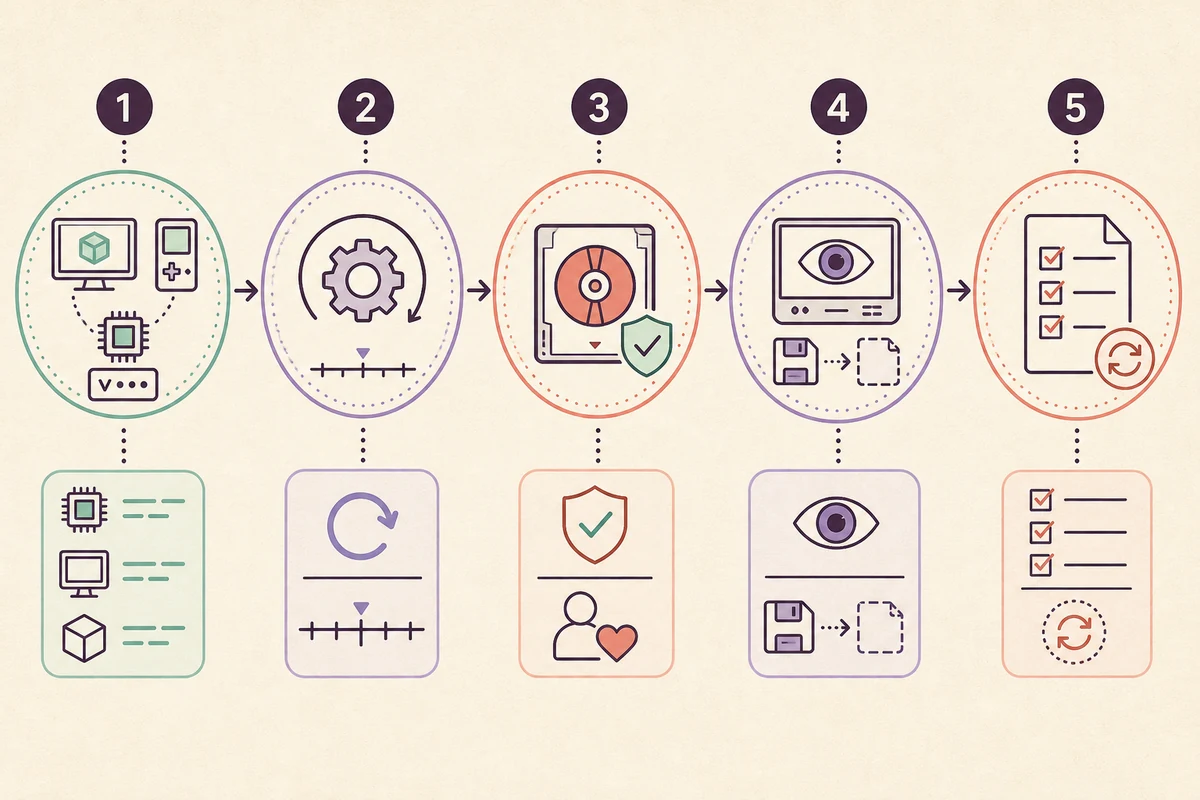
Use the sequence below when the settings list feels overwhelming. The goal is not to promise a fixed FPS value; it is to find the smallest reversible change that improves a repeatable workload without damaging saves or other titles. Keep a short note after every step so you can undo a change confidently.
When a change helps, repeat it twice and test a second scene. When it does nothing, restore the old value before testing the next variable.
- 1. Identify the exact build
Write down the Stable or Nightly tag, platform package and date from the release record.
- 2. Reproduce one scene
Use the same save point, game update, resolution and refresh rate; record frame pacing, audio and input.
- 3. Remove outside load
Close overlays, capture tools and unnecessary background work; check power and temperature.
- 4. Test one graphics cost
Try the supported renderer, lower resolution scale or disable one enhancement, then restart and compare.
- 5. Keep or roll back
Retain the change only if it helps twice and does not reduce stability; otherwise restore the baseline and report the evidence.
What performance advice cannot guarantee
Do not download a "performance pack" that bundles games, keys, firmware or a modified APK. The source and file checks guide explains how to compare release records and spot imitation downloads. If a new build causes a regression, use the update and rollback guide, keep your backup and report the exact before-and-after identifiers.
- No setting can make unsupported hardware behave like a faster device.
- Do not trade save reliability or legal source data for a benchmark number.
Eden Emulator performance FAQ
How can I increase performance on Eden Emulator?
Record a repeatable scene, close background load, confirm the build and driver, then test the supported renderer, resolution scale and one enhancement at a time. Keep the change only when it improves both frame pacing and stability.
Why is Eden Emulator stuttering even when the FPS looks high?
Frame pacing can be uneven during shader or pipeline compilation, background load, thermal throttling or a title-specific effect. Repeat the same scene after caches finish building and record the exact build and driver.
Should I clear the Eden shader cache to fix low performance?
Not as a first step. Back up your profile, check the release notes and compare a rollback or default profile first. Clearing a cache can force another compilation pass and remove useful evidence.
Can a Nightly build increase FPS?
It can contain a targeted performance fix, but it can also introduce a regression. Keep Stable, record both identifiers and compare the same workload before deciding.
Why does Eden slow down after several minutes on Android?
Sustained heat, charging, a case, background work and device power limits can reduce performance. Test with the same APK and scene while cool, record temperature behavior and use the Android requirements guide for package context.