Quick answer: isolate the failure first
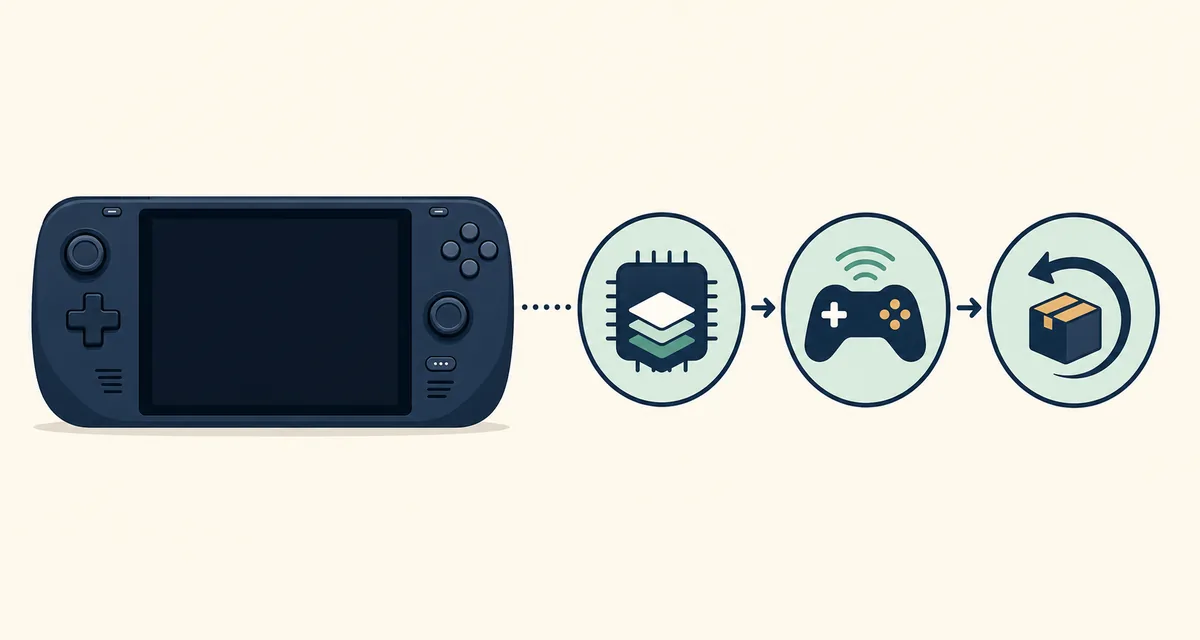
If Eden opens but the game view stays black, first decide whether the problem affects Eden itself or only one game. Launch the emulator menu, open a second known-good title that you legally dumped, and note whether audio, input and the frame counter still respond.
The safest order is: confirm the exact build, test a clean profile or reversible graphics change, check the platform driver, then compare Stable with a specific Nightly only when the release notes give you a reason. Do not delete saves, keys, firmware or shader data before making a backup.
This guide covers troubleshooting only. It does not provide ROMs, game files, keys, firmware or unofficial APK mirrors. Use files you are entitled to use and return to the Eden setup guide for the legal baseline.
- Black screen in every game: check the build, graphics API, driver and profile first.
- Black screen in one game: compare a compatibility report and the game's own dump or update before changing global settings.
- Crash before the game loads: capture the build tag and platform details, then test a clean per-game configuration.
Black screen or game-specific problem?
A useful diagnosis separates a renderer problem from a title problem. If the menus, another game and the same game after a clean profile all fail in the same way, a global graphics or build issue is more likely. If only one title fails, avoid applying a global setting that could make every other game worse.
Record the exact Eden tag, operating system, CPU or SoC, GPU driver, graphics API, game version and whether the screen is black, flickering or frozen. Those details are more useful than a generic claim that a game is unsupported.
| Observed symptom | Likely boundary | First check |
|---|---|---|
| Menus and every game are black | Global renderer, driver or profile | Reopen the build, test the default profile and confirm the driver. |
| Only one game is black | Game dump, update or compatibility | Test another title and read a report tied to the same build and driver. |
| Black screen with audio or input | Graphics output path | Change one graphics option or API, then restart and compare. |
| Freeze or crash at game launch | Loading, cache or missing legal system data | Back up the profile, test a clean per-game profile and capture the log. |
| Unable to connect to host | Network or local service path | Check the intended feature and network permissions before changing graphics settings. |
Verify the build and release source
A black screen that appears after an update may be a regression rather than a permanent configuration error. On August 22, 2026, the verified Stable record was Eden v0.2.1, published on June 1, 2026 in the project timezone, and the verified Nightly record was Eden Nightly - Aug 21 2026 with tag v1787336654.5c54abf353.
Open the Stable release record or the verified Nightly release record and compare the tag, asset name and platform. The download page has verified Windows, Android and Linux file checks, while a Steam Deck-specific asset should be checked in the release record before installation.
If the problem started only in Nightly, keep the Stable build in a separate folder and roll back using the Eden update guide. A Nightly is a dated test point, not a guarantee of better compatibility or fewer crashes.
Test graphics and driver variables one at a time
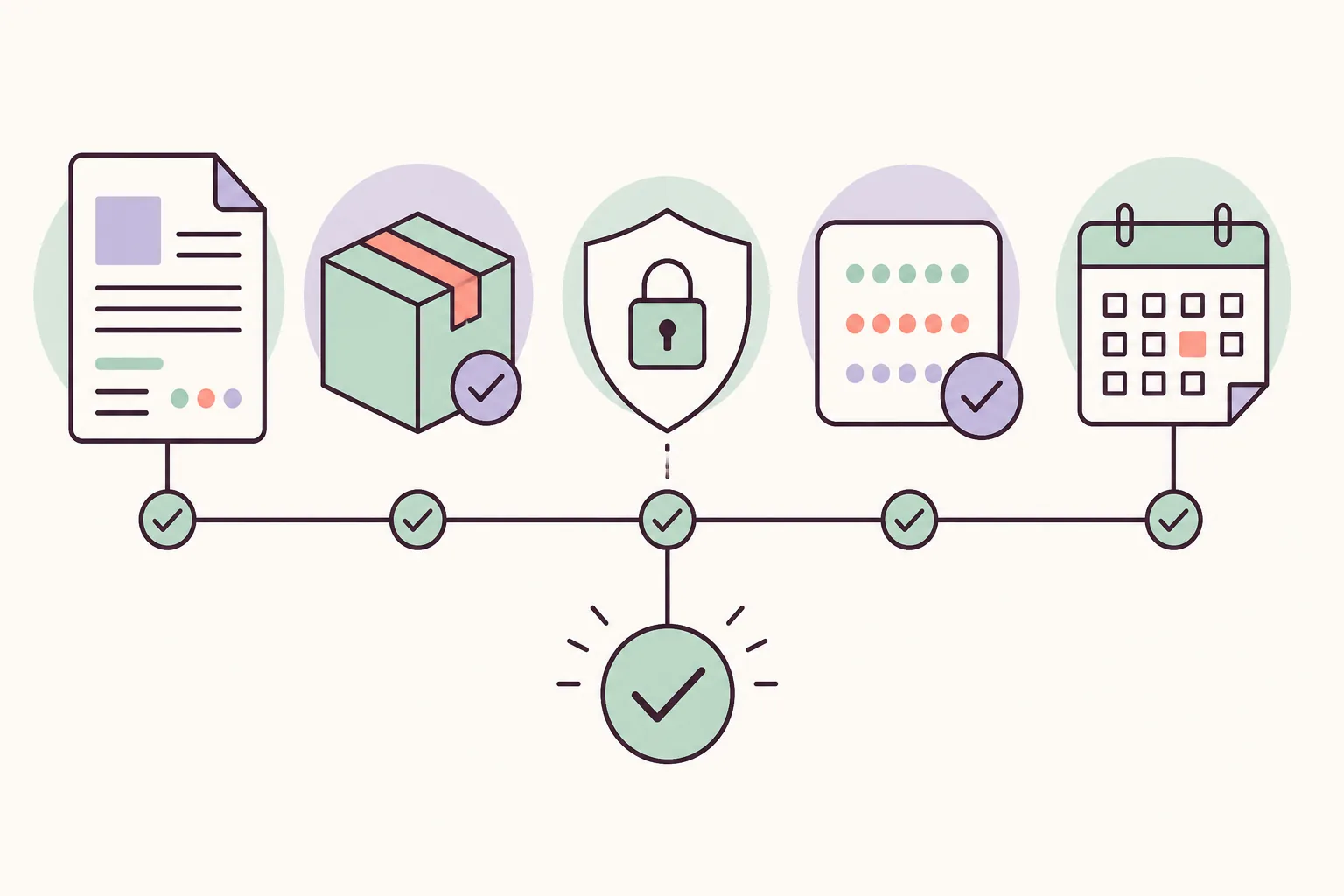
The words ‘best settings’ are too broad to be a fix. A setting that helps one GPU, Android driver or game can produce a black screen elsewhere. Make one change, restart Eden, reproduce the same step and write down the result.
On Windows, start with the current GPU driver and the default per-game profile. On Android, match the APK architecture to the device and check the vendor graphics driver. On Steam Deck or Linux, keep the AppImage and compatibility layer choice stable while you test the renderer. Use the Windows guide, Android requirements or Steam Deck guide for platform-specific context.
- Back up before clearing anything
Copy saves and the Eden user profile to a separate folder. Do not treat a shader or cache reset as a substitute for a backup.
- Return to a known baseline
Disable experimental per-game overrides and test the default graphics profile. Keep a note of the original values so the change is reversible.
- Change one renderer variable
Test the available graphics API or accuracy option once, restart Eden and compare the same title from the same save point. Avoid changing resolution, shader mode and driver at the same time.
- Recheck the driver path
Update or roll back the GPU or vendor driver only when the release notes or a matching report support that hypothesis. A driver change can affect every game.
Platform branches for common black-screen cases
The same symptom has different likely causes on each platform. Use the smallest platform-specific test first, and do not copy a Windows setting into Android or Steam Deck without checking what the option actually controls.
If a platform page has a more precise requirement, follow it and link the result back to the exact Eden tag. That keeps a useful report tied to a reproducible environment rather than a generic ‘it works’ claim.
| Platform | Start here | Avoid |
|---|---|---|
| Windows PC | Confirm GPU driver, architecture, runtime and per-game graphics overrides. | Do not download random DLL packs or call an unverified mirror an official fix. |
| Android | Confirm ARM64/APK match, Android version, vendor driver and available memory. | Do not mix APK architectures or assume a newer driver fixes every title. |
| Steam Deck / Linux | Use Desktop Mode, check the AppImage and compatibility layer, and test a clean prefix or profile. | Do not replace a working Stable build while testing a Nightly regression. |
| One title only | Compare a report for the same Eden build, driver and game update. | Do not label the whole emulator broken from one game result. |
Fix crashes while loading a game
‘Eden Emulator crashing’ and ‘crashes when loading game’ describe several stages: opening the game list, reading a dump, compiling shaders, creating a renderer or starting a save. The stage matters. A crash before the title appears points to a different test than a crash after gameplay begins.
Start with a legal, unmodified backup, confirm the game update matches the report, and test without a cheat or experimental patch. If another game launches, keep the change scoped to the affected title and capture the last visible step before asking for help.
For a PC crash, the Windows page covers runtime and driver checks. For controller, input or host errors, use the controller setup guide and include the exact error text instead of guessing that a black screen is a graphics failure.
When the message says unable to connect to host
‘Unable to connect to host’ is not the same diagnosis as a renderer black screen. It may refer to a local service, a multiplayer or network feature, a frontend connection or a blocked permission. First note where the message appears and whether offline games still launch.
Check the intended feature's documentation, local firewall or permission prompt and the address or port shown by the error. Do not disable security software broadly, expose a service to the internet or change graphics settings to solve a network-path error.
If the error appears only after a game starts, preserve the log and reproduce it with the same build. A concise report with platform, tag, feature, network scope and exact error text is more actionable than a screenshot of a black window.
Rollback, report and stop when the evidence is weak
If a known-good Stable build works and a specific Nightly does not, keep both records and roll back. If neither works, restore the clean profile and test a different title before deleting data. A rollback is evidence about a build boundary; it is not proof that every game needs the older release.
For a useful issue report, include the exact tag, platform, CPU or SoC, GPU and driver, graphics API, game update, reproduction steps, whether audio or input still works, and the last log line. Remove personal paths and account information before posting.
When no verified asset, driver note or reproducible difference exists, stop changing settings and return to the official release records. This site is an independent guide and does not certify a build as safe or universally compatible.
Eden Emulator black screen FAQ
Why is Eden Emulator black only in one game?
That pattern is more consistent with a game dump, update, compatibility or per-game profile issue than a global renderer failure. Test another title and compare a report tied to the same Eden build, driver and game version.
What should I try when Eden crashes while loading a game?
Back up the profile, confirm the exact build and game update, disable cheats or experimental patches, then test a clean per-game profile. Capture the stage and last log line before changing global settings.
Can a Nightly fix a black screen?
It can contain a relevant fix, but a Nightly can also introduce a regression. Use the exact release tag, keep Stable available for rollback and change one variable at a time.
Does ‘unable to connect to host’ mean the GPU is broken?
No. That message points first to a network, local service or permission path. Record where it appears, confirm whether offline games launch and check the feature documentation before changing graphics settings.
Should I clear Eden shaders or delete my profile?
Only after backing up saves and configuration, and only when the symptom supports a cache or profile hypothesis. A reset can remove useful evidence and will not repair an incompatible driver or game update.
Does this page provide ROMs, keys or firmware?
No. It only explains troubleshooting. Use your own lawful game and system-data exports; the site does not host or link to copyrighted game files, keys, firmware or unofficial APK mirrors.
Where should I start for Windows, Android or Steam Deck?
Use this page to classify the symptom, then follow the Windows, Android or Steam Deck guide for platform-specific requirements. Keep the exact Eden tag and driver in any comparison.