Eden Emulator save data: the safe transfer method
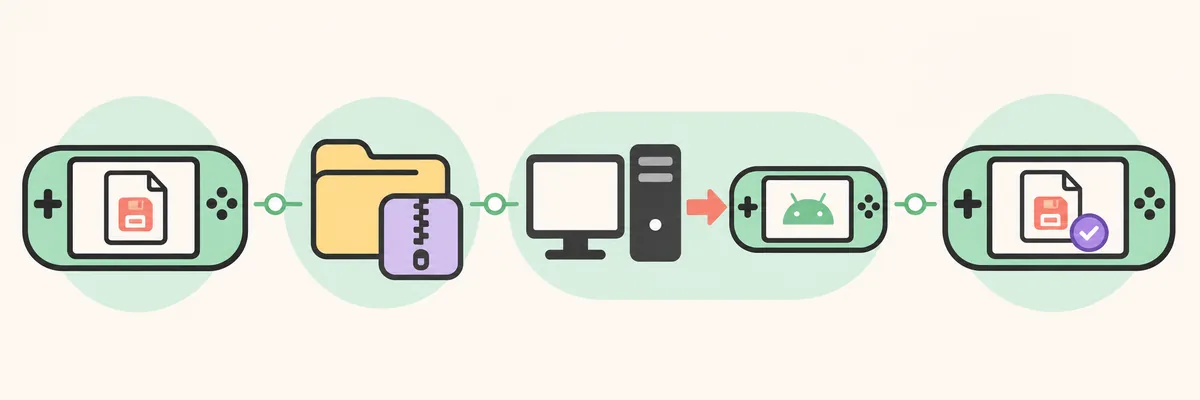
The safest way to transfer Eden Emulator saves is to copy a save that has been closed cleanly, keep the original untouched, and test the copied save on the destination device. Start with the game's normal save data. Treat emulator save states, configuration, shader caches, and game files as separate data; they are not interchangeable with a normal in-game save.
This guide covers a one-time backup, how to import save data in Eden Emulator, moving Eden Emulator saves between PC and Android, and restoring a prior copy. It does not provide games, ROMs, keys, firmware, or unofficial packages. Use only game data and system files you are entitled to use. For first-run setup, see the Eden setup guide; for an emulator update, follow the backup and rollback steps before changing builds.
Identify the save before you move it
A game save is progress written by the game; a save state is a snapshot of emulator memory. Save states can depend on the Eden build and title version, so use a normal in-game save for cross-device transfers when possible. Keep save states as a separate recovery option.
Before looking for an Eden Emulator save file location, note the game name or ID, Eden build, operating system, and last known-good save time. Use the library's per-game location control if your build provides one. Folder names and layouts can differ from the visible game title, so record both source and destination locations for rollback.
| Data type | What it contains | Transfer approach |
|---|---|---|
| Normal game save | Progress written by the game | Back up and test on the destination; compatibility depends on the game and build. |
| Emulator save state | A snapshot of emulator memory | Keep as a separate recovery file; do not assume it will load on another platform or build. |
| Settings or cache | Preferences, shaders, and temporary files | Do not replace a save with these folders. Reconfigure or rebuild caches when needed. |
| Game or system files | Content and system data needed to run a title | These are not save progress; use only files you are entitled to use and do not share them. |
Back up Eden Emulator save files first
A backup must remain separate from the copy you are changing. Exit the game, let writes finish, then use the current build's per-game location or export feature. If neither is available, copy the known save folder through permitted operating-system access; do not root a device or change permissions to reach an undocumented path.
Copy the complete folder when related files are stored together. Preserve names and subfolders, then place a dated copy outside active Eden storage. For valuable progress, keep a second offline copy. Compare the copied files with the source; a checksum can confirm an unchanged transfer, but not compatibility with another game version.
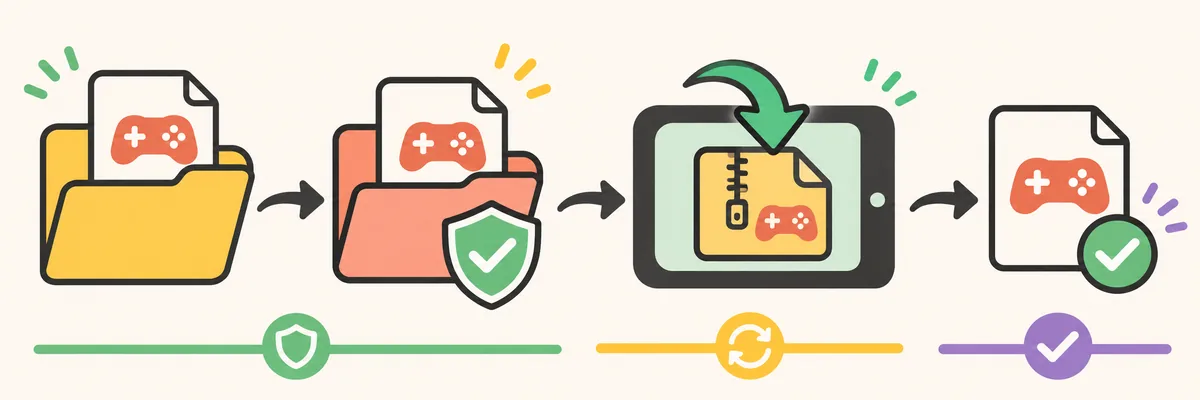
- Stop writes
Save in the game, return to the emulator menu, and close Eden instead of force-quitting during a write.
- Copy the source
Use the per-game save location or export control offered by your installed build; preserve the full folder structure.
- Separate the backup
Store a dated copy outside active emulator storage and record the source device, game, and build.
- Check the copy
Confirm that the expected files and folders exist before you import or overwrite anything.
Transfer saves between Windows and Android
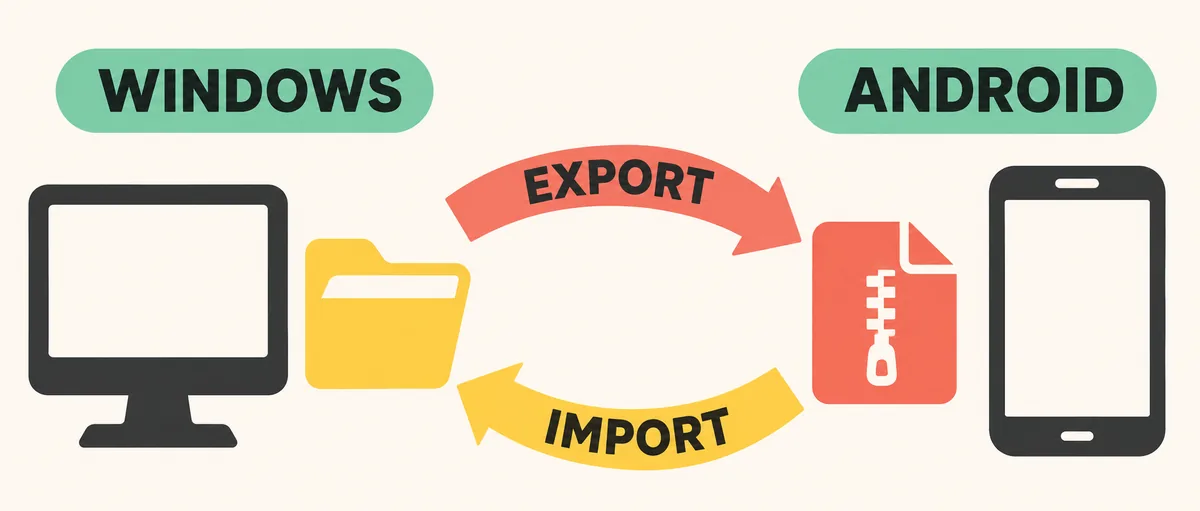
On Windows, use the game's save-location action if your installed Eden build offers it, and copy only after closing the game. Transfer the archive to a staging folder on Android, then verify its names and structure before importing.
Android storage access varies by OS, device, and Eden build. Some builds or file pickers may expose export/import controls, but community-reported menu names can change. Prefer actions visible in your own build. If Android blocks an app-private folder, use a supported export or file picker instead of following an old fixed path.
For Android-to-Windows transfer, export or copy to a PC staging folder and keep the Android source. Move one title at a time and check its save slot. A successful copy does not guarantee compatibility across game versions, regions, IDs, add-on content, or save formats.
Import or restore a save without overwriting the backup
To restore an Eden Emulator game save, first launch the destination game once if needed, then close it fully. Keep the destination's current folder as a separate backup before importing. Use an export/import control if the installed build provides one. For manual restoration, copy the saved folder into the verified per-game location while preserving its directory structure; avoid creating an extra nested folder with the same name.
Open the intended game and check its slot, progress marker, and a recent detail you recognize. If correct, make a new in-game save, close Eden, and reopen once to confirm it persists. Keep the source and transfer backup until this second launch succeeds; reaching the title menu alone does not prove the right save loaded.
Troubleshoot a missing, old, or rejected save
If no progress appears, stop and restore the destination backup before testing another location. Verify the game, region, folder depth, and expected files; do not rename files unless the game's documentation says to. If an older save loads, compare the source's current slot and date before changing anything.
If a save is rejected after an update, keep the backup and check game-version or save-format notes before considering a rollback. A save state failing on another build does not prove that the normal game save is damaged.
For automated sync, first confirm that manual transfer works. The Eden save backup and sync handbook warns about simultaneous writes and conflicts: let one device finish, close the game, and wait for sync before opening the same save elsewhere. A community transfer report illustrates title- and direction-specific failures, not a universal fix.
What a save transfer cannot guarantee
A save may depend on game version, region, title ID, add-on content, or platform format. Windows-to-Android transfers work for some titles and fail for others; matching filenames do not prove compatibility. Check first-party notes when a menu or storage rule matters.
This independent guide cannot guarantee cross-platform support and does not provide game files, ROMs, keys, firmware, or save downloads. Keep a source and rollback copy until the restored save persists. For title-specific behavior, see the Eden compatibility guide; for display or launch symptoms, use the black-screen troubleshooting guide.
Eden Emulator save data FAQ
Where is the Eden Emulator save file location?
It varies by platform and build. Use Eden's per-game location or export control where available; avoid old fixed Android paths.
How do I import save data in Eden Emulator?
Close the game, back up the destination, import or copy the verified folder, then test a new save before deleting backups.
Can saves move between PC and Android?
A supported export or file-access route can move the backup, but each title's version, region, ID, and save format affect compatibility.
Can I transfer save states?
Keep them separate from normal saves; a state may only work with the same platform, Eden build, and game version.
Can I sync a save automatically?
Possibly, but close the game and wait for sync before opening that save on another device. Keep an independent backup.