
What Eden Emulator game updates and DLC do
A game update changes a title's content version; DLC adds content for that title. Both are game data, separate from replacing the Eden application. For emulator releases, use the Eden application update guide. The official Eden update and DLC handbook supports the menu labels and steps here.
For a separate, lawfully obtained file, choose File > Install Files to NAND..., review Eden's scan and confirmation, install the intended entry, then check the game's Add-Ons column. A listed item does not guarantee compatibility with every game or build. For adding a base title, see the Eden games guide.
- Use only game data you are legally entitled to use.
- Check Add-Ons and per-game configuration before changing other settings.
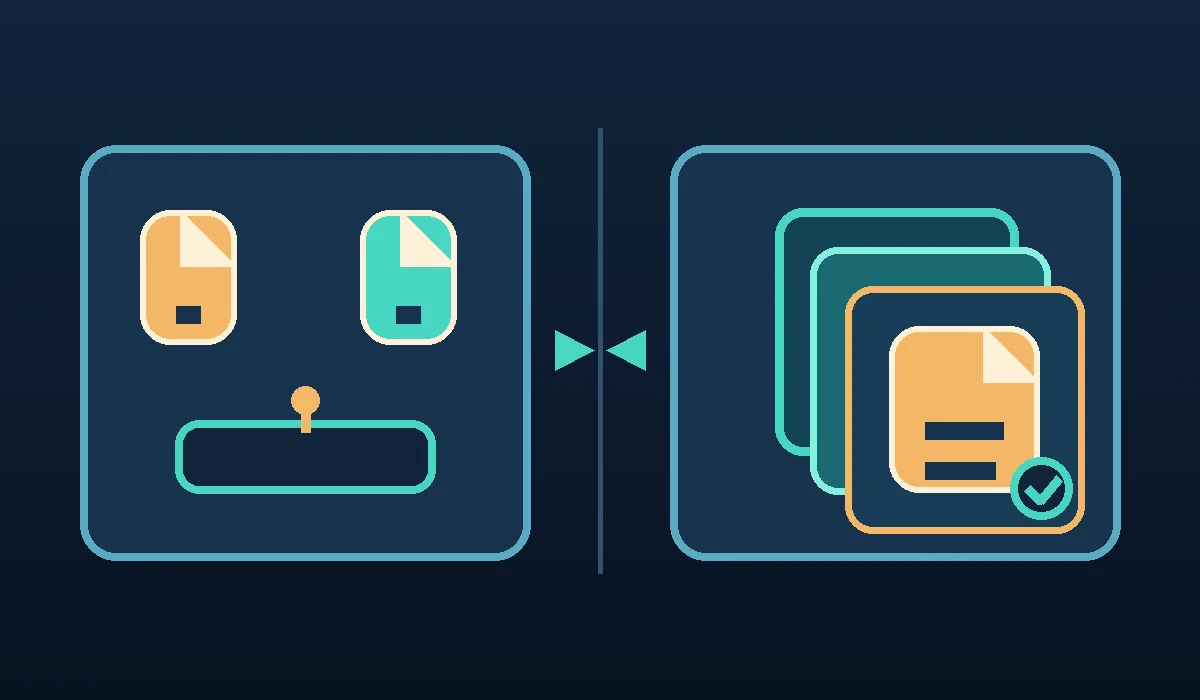
Separate update files versus merged NSP or XCI files
The official procedure covers separate update and DLC files. It excludes a merged NSP or XCI that already contains the base game and added content; that package does not need the separate-file steps. The diagram is a concept comparison, not a merge instruction.
An extension alone cannot confirm that a file is complete, valid, or intended for your title. Keep its original name and verify it with the lawful source. If you cannot identify it, pause rather than trying random packages. For library basics, see the game library guide or setup guide.
| What you have | How to treat it | What to check |
|---|---|---|
| Separate update or DLC | Use Install Files to NAND | Review validation and selected entries |
| Merged NSP or XCI | Separate-file steps are not required | Check lawful source details |
| Archive or unknown file | Do not assume Eden can install it | Verify its type and source |
Prepare before installing an update or DLC
Confirm that the base game appears in Eden and identify each file from its lawful source. Note the game and Eden build; back up important saves through your platform before changing content. Close other emulator instances and change one setting at a time. The compatibility guide helps record a test environment, but one report is not a universal guarantee.
This guide does not provide downloads. Eden does not distribute commercial games, updates, DLC, keys, or firmware. Use files you are permitted to access and avoid mirrors with no verifiable source.
- Identify the title and file type before installing.
- Back up important saves and record the current build.
- Stop if the package type or source is unclear.
How to install Eden Emulator game updates and DLC
The steps follow the first-party handbook. Review the scan and confirmation screen; selecting multiple files does not mean every entry should be installed. If the menu differs in your build, check its documentation before experimenting.
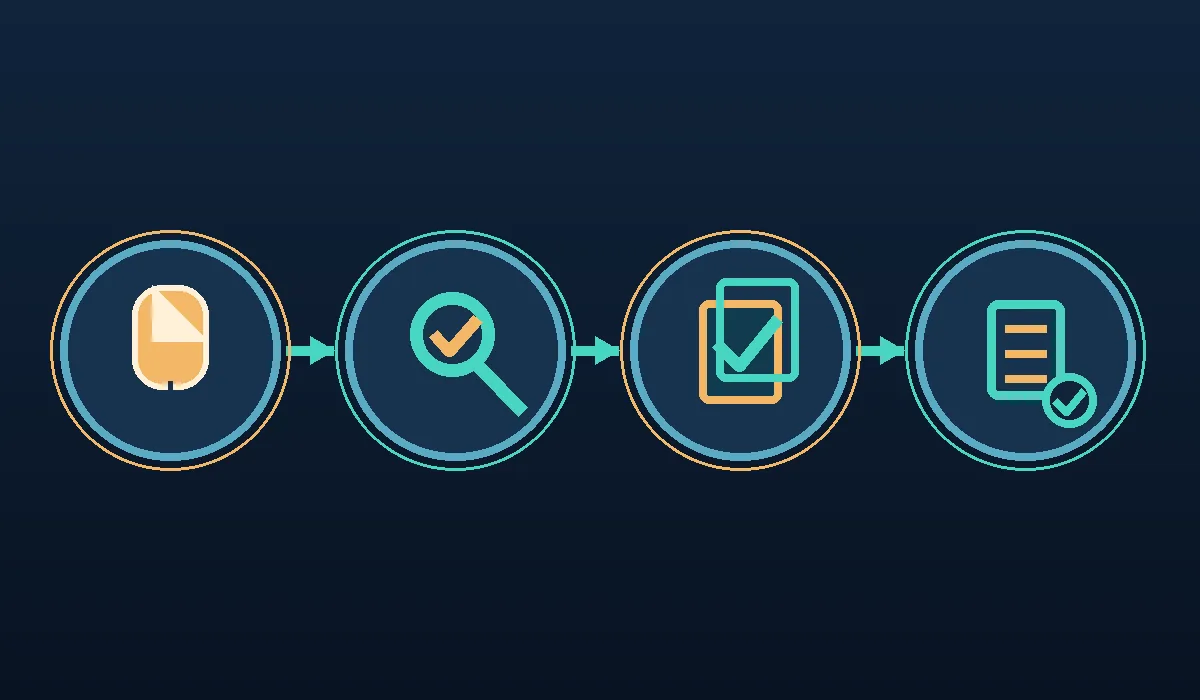
- Open the install command
Choose File > Install Files to NAND... in Eden's main window.
- Choose the file
Select the lawful update or DLC file for the intended title. Keep its original name.
- Review the scan
Read Eden's validity scan and deselect any entry you did not intend to install.
- Install
Confirm the selected entries and wait for the success message.
- Check the library
Look at the game's Add-Ons column for the listed content.
Verify or disable installed game content
Check the selected game's Add-Ons column after the success prompt. If the item is absent, compare it with your title and file notes; do not install random replacements. A listing shows that Eden recognizes an entry, but the game may have its own requirements.
To disable content, right-click the game, choose Configure Game, uncheck the update or DLC, and select OK. The handbook says disabled entries show [D]. Test one item at a time and record the build and symptom; preserve saves while troubleshooting.
- Check Add-Ons after installation.
- Use Configure Game to inspect or disable a listed item.
- The documented disabled state uses a [D] marker.
Troubleshoot missing, rejected, or inactive DLC
If a file is not listed, confirm that you used the install command and selected the intended package. Read the scan message; an extension does not prove a file is complete or correct. Stop if its lawful source or file type is unclear.
If installation reports success but content is missing in-game, check the selected title's Add-Ons column and Configure Game for a [D] marker. Then inspect the game's own content screen; a listing alone does not prove that the title loaded the add-on.
For a new regression, note the item, Eden build, game state, and symptom. Disable that item and compare one test run before changing anything else. Do not bypass a rejected scan or use a random mirror. Check the first-party update/DLC documentation; the application update guide is for replacing Eden itself.
| Symptom | First check | Avoid |
|---|---|---|
| File is missing | Read the scan and verify its source | Unknown file retries |
| Listed content is inactive | Check Configure Game and [D] | Deleting saves |
| New regression | Disable one item and compare | Changing several settings |
| Menu differs | Check the first-party guide | Bypassing warnings |
Keep a safe, reproducible test record
Record the title, Eden build, file type, scan result, Add-Ons state, and exact symptom. Reproduce one change at a time so you can return to a known state.
Keep lawful source files and backups until your setup is verified. The handbook does not say when every user can delete an original package or guarantee persistence across builds. For a baseline, see the setup guide, game library guide, and emulator update guide. This independent site does not represent Eden's developers.
To narrow down a conflict, note which entries were enabled before launch, then disable one optional item for the next test. Compare the launch result and the Add-Ons list before changing anything else. This one-change-at-a-time check can help locate a content interaction, but it cannot verify a file's source, license, or authorization; check those separately.
Eden Emulator updates and DLC FAQ
How do I install a separate update or DLC file?
Choose File > Install Files to NAND..., review the scan and confirmation, install the intended entry, then check Add-Ons.
Do merged NSP or XCI files need these steps?
No. The handbook excludes merged packages that already contain the game and additional content from its separate-file procedure.
How can I disable installed content?
Right-click the game, choose Configure Game, uncheck the item, and select OK. Disabled content is marked [D].
Why is DLC listed but missing in-game?
Check the title, Configure Game for [D], and the game's own content screen. A listing does not prove that the title loaded it.
Can I download game updates or DLC here?
No. Use only files you are legally entitled to access. This site does not host or link to games, updates, DLC, ROMs, keys, or firmware.
Is this the same as updating Eden?
No. This page covers game content. Use the application update guide to replace an Eden build and plan a rollback.