What “Eden Emulator games” should mean
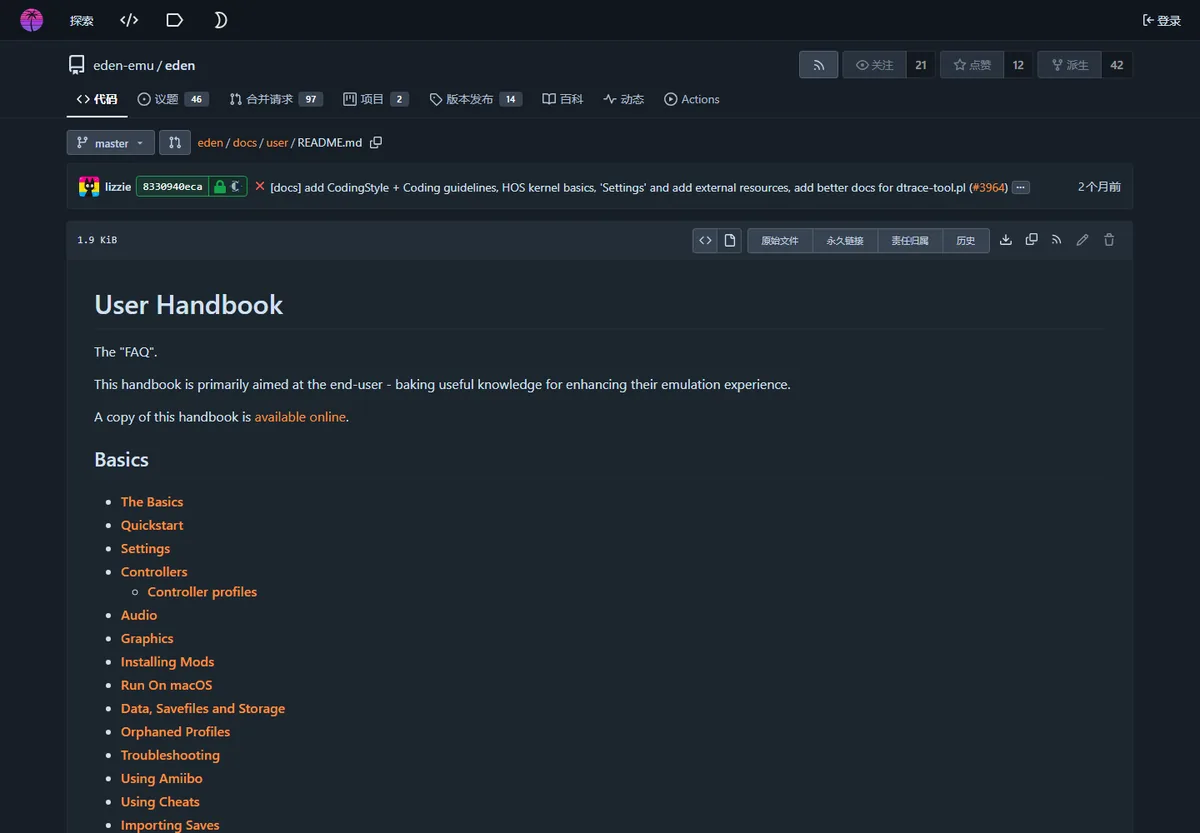
Eden is an emulator application, not a game store or ROM archive. The official project distributes the program through Forgejo release pages, while the user supplies legally obtained system data and game backups. A trustworthy Eden Emulator games guide should explain library setup without directing readers to copyrighted downloads.
Start with the verified Eden download routes, complete the keys and firmware setup, and keep original media or console ownership records. Laws differ by location, and technical access does not automatically grant permission to copy or share a title.
- Use only backups you are legally allowed to create and use.
- Never download keys, firmware or commercial game files from random mirrors.
- Keep the emulator, games, updates and saves in separate folders.
- Use one known game first so setup errors are easier to isolate.
Game files, folders and what Eden can recognize
Switch backups are commonly stored as NSP or XCI containers, but an extension alone does not prove that the file is complete or valid. A renamed, truncated or encrypted file can look correct in Explorer while Eden cannot read its metadata. Keep the original filename, avoid nested ZIP or RAR archives, and confirm that the dump completed before troubleshooting the emulator.
For a small test library, create a folder such as Games/Eden-Test and place one base game there. Keep updates and DLC outside that scan folder until they have been installed through Eden. Large libraries are easier to maintain when notes record the base version, installed update, Eden build and last successful launch.
| Item | Recommended handling | Why it matters |
|---|---|---|
| Base game (NSP/XCI) | Keep as an uncompressed file in a readable game folder | Eden needs the actual container, not an archive wrapper |
| Update or DLC | Install through Eden’s File menu | Installed content is managed separately from the library entry |
| ZIP/RAR/7z archive | Do not load it as a game | Eden does not treat a generic archive as playable content |
| Save data | Back up separately before changing builds | Save paths and profiles are not the same as game files |
How to add games to Eden Emulator
Use a layered test. Launch Eden with no game folder first. If it opens, import the required lawful system data, restart it, and then add one game. This order tells you whether a failure belongs to the application, keys and firmware, storage permissions, or the game dump.
Menu wording may differ between Stable, Nightly, desktop and Android builds. On desktop, add a directory to the game list or use File → Load File for a one-off test. On Android, grant access only to the selected folder when the system picker allows it.
- Prepare Eden
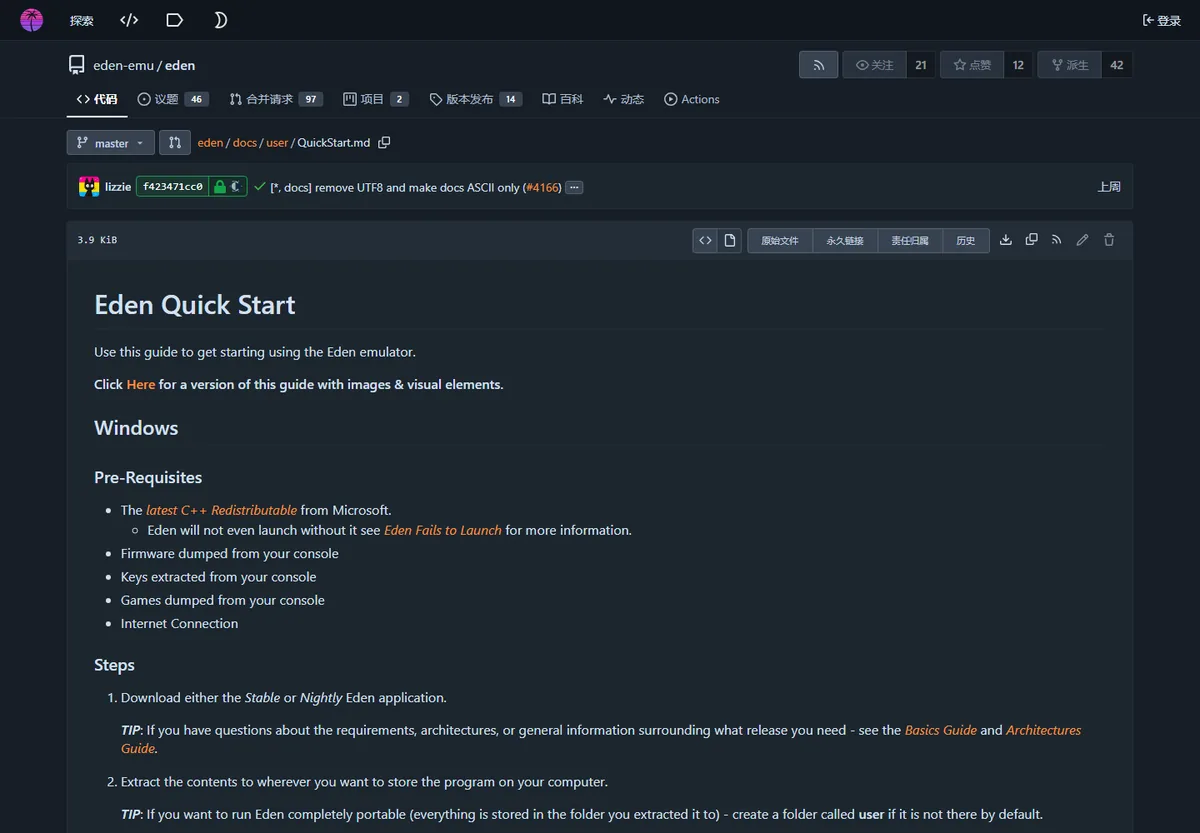
Install a verified Stable or Nightly build, launch it once and confirm the main window opens.
- Finish legal system-data setup
Import keys and matching firmware obtained from hardware you own, then restart Eden.
- Create a simple test folder
Place one complete, uncompressed game dump in a short path with enough free storage.
- Add the directory or load the file
Use Eden’s library option, or File → Load File to test one title.
- Record the baseline
Note the Eden tag, game version, operating system, device, GPU and driver.
Install game updates and DLC separately
A base game, an update and DLC are different pieces of content. Eden’s official handbook tells users to install separate update or DLC files through File → Install Files to NAND. The program scans the selection and shows a confirmation list before adding valid content to managed storage.
Do not assume the newest update is always the best compatibility choice. If a title stops launching, record the base version, update version and Eden build, then compare the same combination. Back up saves before removing installed content or switching between Stable and Nightly.
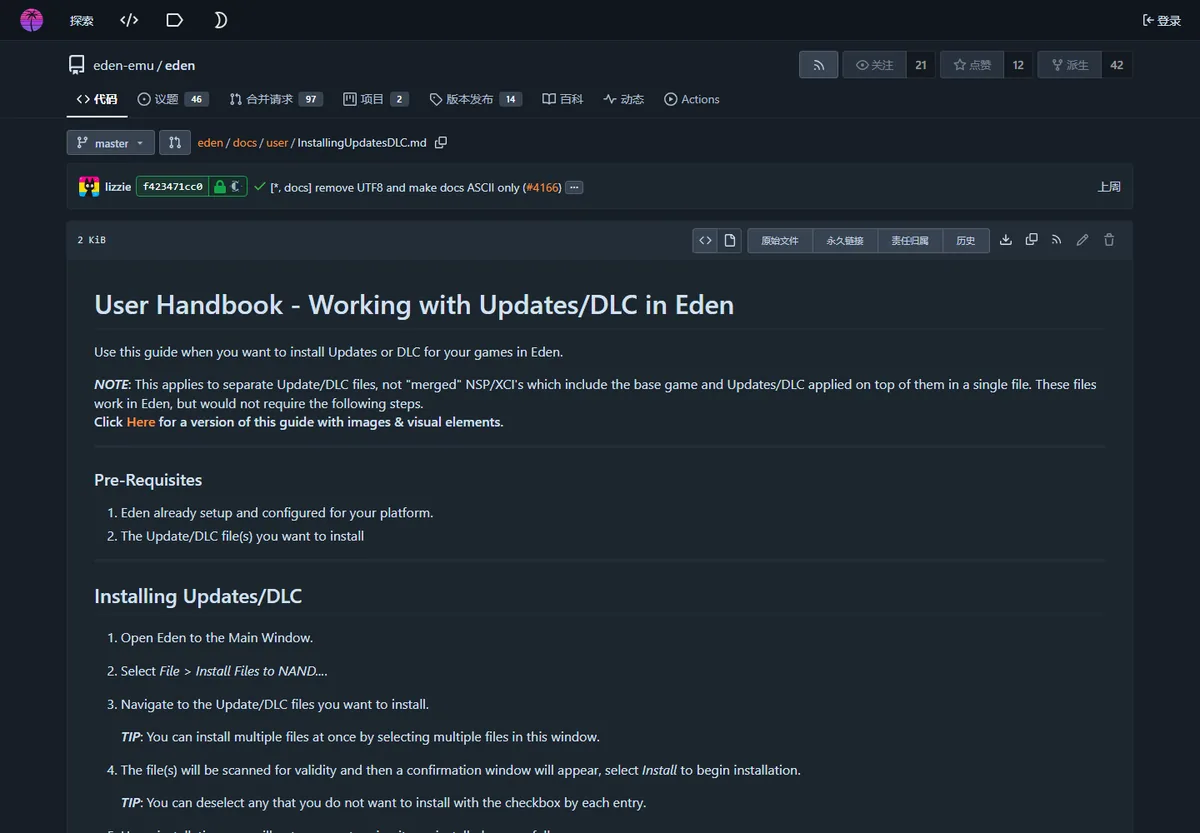
- Keep base games in the library folder and install separate updates or DLC through Eden.
- Avoid installing the same update repeatedly under different filenames.
- Test the base game before adding optional DLC.
- Document the working combination before experimenting with another build.
Why Eden games are not showing or launching
A blank library does not automatically mean the emulator is incompatible. Verify that Eden can read the selected folder and that the file is not still inside an archive. Then confirm keys and firmware, file permissions, available storage and dump completeness. Reproduce the issue once and read the log instead of changing several variables.
If a game appears but fails after the title screen, move to the compatibility testing guide. Results depend on the exact Eden build, game update, CPU or SoC, GPU driver and settings. A report from different hardware is a lead, not a guarantee.
| Symptom | First checks | Next step |
|---|---|---|
| Game is absent | Folder access, archive status, extension and scan setting | Load the single file and inspect the log |
| Metadata is missing | Keys, firmware and dump completeness | Restart after importing matching system data |
| Black screen or crash | Eden build, game update, GPU driver and defaults | Test a known baseline and compatibility reports |
| Android folder is unavailable | Storage permission and picker grant | Re-select the narrow game folder |
Maintain a clean, recoverable game library
Treat the game library as source data and Eden’s profile, installed updates, shader cache and saves as working data. Back them up on different schedules. Keeping them separate reduces accidental deletion during an emulator update.
The release check on August 16, 2026 found Stable still at Eden v0.2.1 and Nightly at Eden Nightly - Aug 21 2026, tag v1787336654.5c54abf353. Release pages can change later, so verify the current tag before reporting a bug.
- Back up saves before installing updates, DLC or another Eden build.
- Keep the last known working Stable or Nightly package.
- Use descriptive folders and preserve original game filenames.
- Record build tags and game versions in compatibility notes.
- Link to official documentation when sharing support steps.
Eden Emulator games FAQ
Does Eden Emulator include games?
No. Eden distributes the emulator application, not commercial games, keys or firmware.
Where can I download games for Eden?
This site does not link to ROM or game-download sources. Use only backups you are legally permitted to create from software you own.
Does Eden use NSP or XCI files?
Those containers are commonly used for Switch backups, but the file must be complete, lawful and readable.
Why is my game not showing in Eden?
Check folder permission, archive status, file completeness, keys, firmware and the selected scan directory.
How do I add updates or DLC?
For separate update or DLC files, the official handbook uses File → Install Files to NAND. Back up saves first.