
What Eden Emulator multiplayer can and cannot do
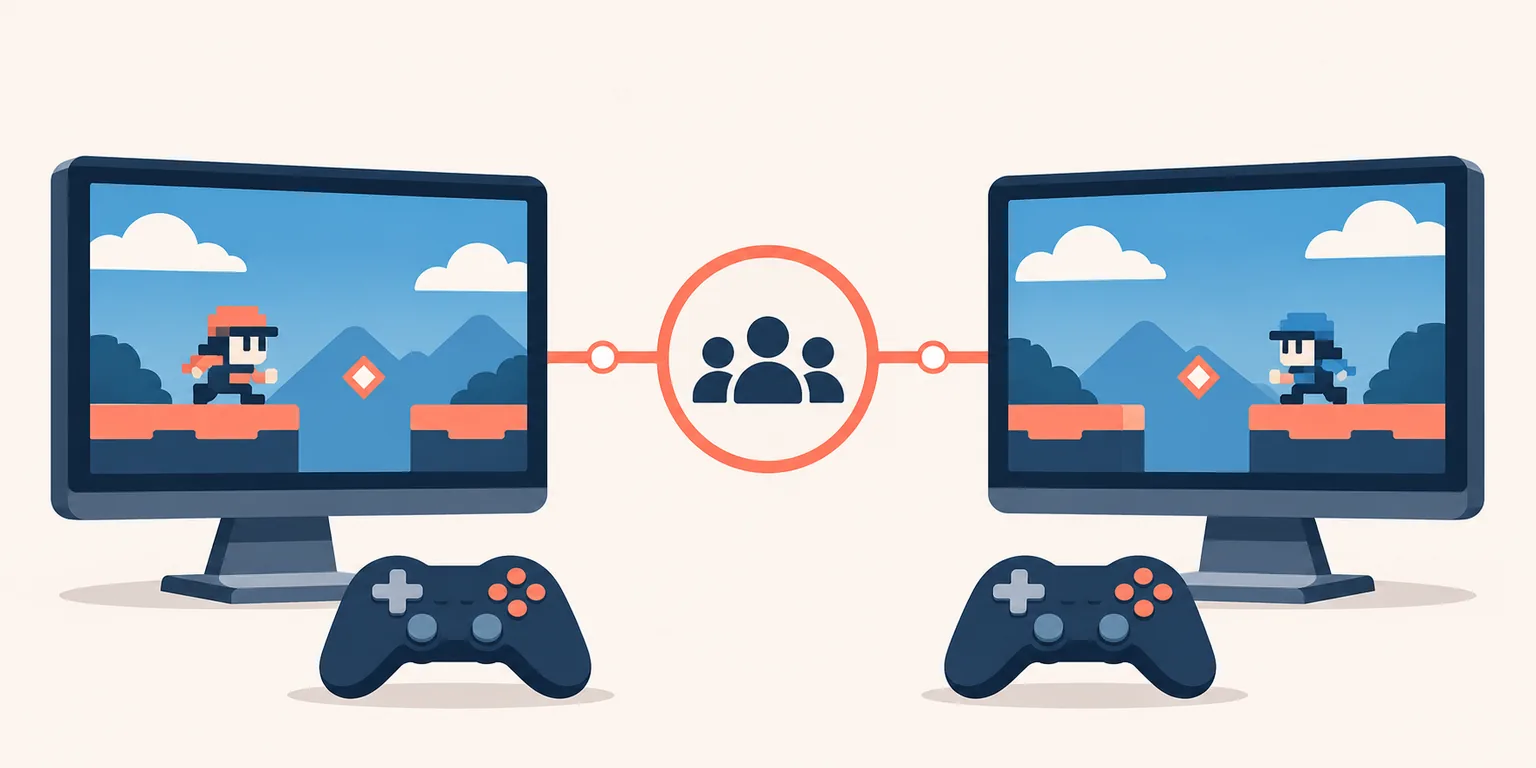
The short answer is that Eden Emulator multiplayer is room-based emulator play. Two or more compatible Eden installations connect through the multiplayer service exposed by the build, then a supported game creates the player session. It is different from connecting an emulator directly to a physical Switch console, and it is different from Nintendo's official online service. The official Eden Multiplayer Handbook is the authority for the current menu names and limitations.
A successful Eden Emulator multiplayer session depends on several variables at the same time: the exact Eden build, the game and update version, lawful system data, the room address or lobby, the generated identity token, each player's controller profile, and the local network path. A room can appear healthy while a game still fails because one player has a different update, an unsupported feature, or a renderer problem.
Use this page for the room workflow and network boundary. Use the Eden setup guide for first launch, the controller setup guide for button mapping, and the compatibility guide when the question is whether a particular game works at all. This site does not provide ROMs, keys, firmware, private tokens or paid VPN access.
- Emulator multiplayer is not Nintendo's official online service.
- Every participant should record the same game, update and Eden build before testing.
- Keep a backup and a known-good build before changing network or graphics settings.
Eden Emulator multiplayer requirements
Start with a clean baseline on every device. Install Eden from the verified download center, record the complete release tag and confirm that the package architecture matches the operating system. A Stable build and a dated Nightly may expose different multiplayer behavior, so do not compare a room result without recording which build each player used.
Each player needs the same game identity and compatible content. Use a game backup you are legally entitled to use, apply the same base-game update and remove experimental patches while diagnosing a room. If one participant has a different update or a modified file, the room may connect but the game can reject the session, desynchronize or crash during loading.
The multiplayer setup also needs a network path that allows the room service to reach both clients. You may need to open Eden's general web or network settings, enter a display name and generate the identity token described by the Handbook. Treat the token like a password: keep it private, do not paste it into public posts, and generate a new one if you believe it was exposed.
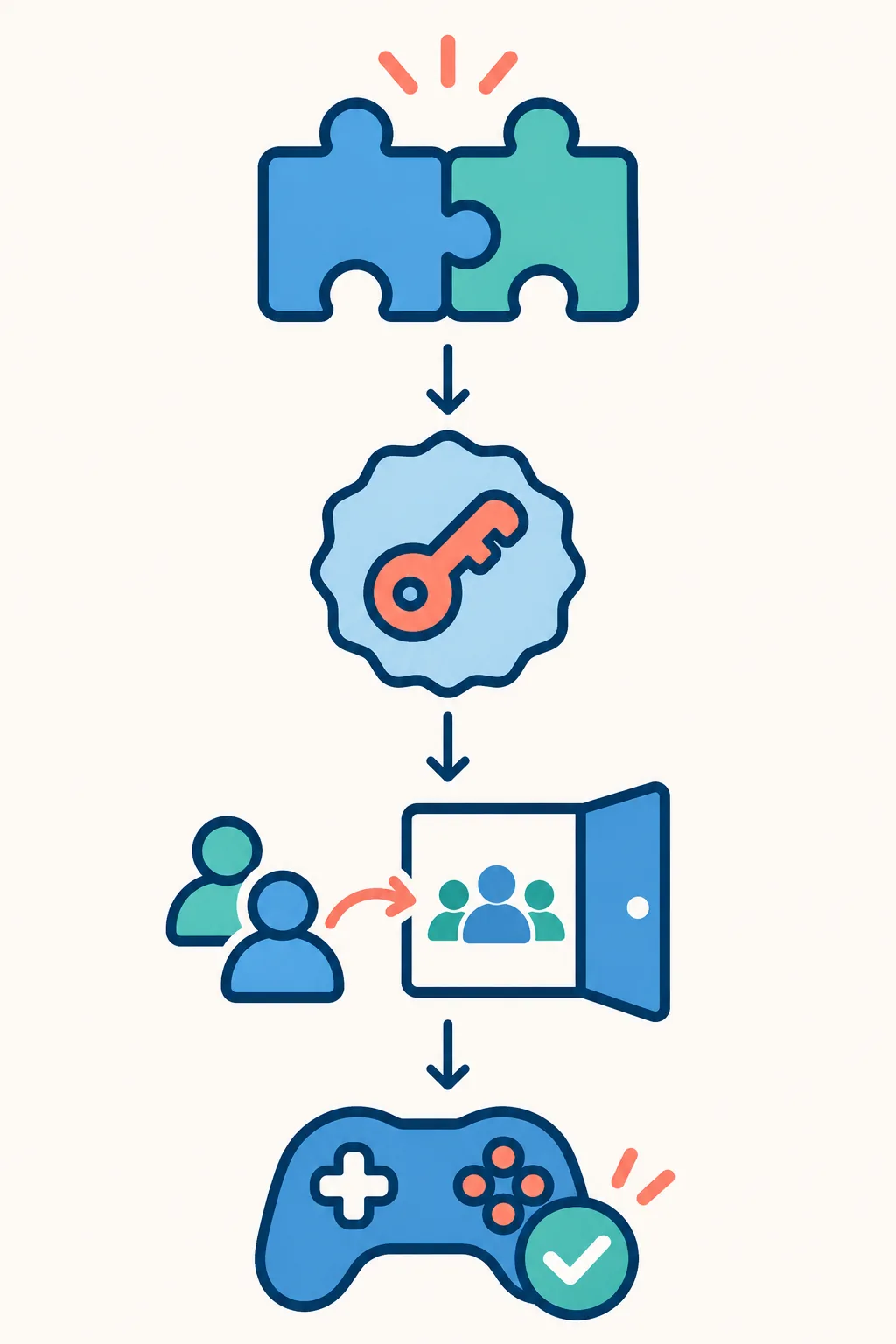
- Matching Eden build and game update, or a documented reason for the difference.
- A lawful game backup plus the required personal system data on each installation.
- A unique display name and current identity token for each participant.
- A stable network connection, correct clock and permissions for Eden's network requests.
- A controller profile with a separate player slot for each local participant.
How to play multiplayer on Eden Emulator step by step
The menu labels can change between releases, but the order is stable: identify the build, prepare the network identity, open the multiplayer view, join or host a room, and only then launch the game. Change one variable at a time. If you change the build, router, game update and controller layer together, you will not know which change fixed or caused the result.
Before inviting another player, perform the room test with the game closed. Confirm that both names appear, that the room reports a connected state, and that each controller responds in its assigned slot. A room that fails before a game starts points to identity or network configuration; a room that works until a title loads points to game content, compatibility or graphics.
- 1. Record the exact build
Write down the Eden release tag, platform, architecture, renderer and game update. Ask the other player to provide the same details before troubleshooting a room.
- 2. Prepare the identity
Open Eden's general web or network settings, enter a non-sensitive display name and use the built-in command to generate an identity token when the build requires one. Save only the fact that a token was generated, never the secret itself.
- 3. Open the multiplayer view
Use Eden's Multiplayer entry and check the room list or host controls. If the panel is empty, test the network request before launching a game.
- 4. Join or host one room
Use a public room or a private address supplied by a trusted friend. Confirm that the room name, player count and connection state update on both clients.
- 5. Test input and the game
Assign Player 1 and Player 2 profiles, launch the same supported game, and test a short reversible scene. Stop if the session desynchronizes or the game begins writing unexpected data.
Join a public or private Eden Emulator room
Public rooms are useful for discovering whether the feature works, but they add variables that you cannot control: room version, host settings, participant count and moderation. A private room with one trusted participant is a better first test. Share only the room information required by the current build, and never publish a token, personal IP address or account credential in a guide comment.
When you join, wait for the room to report a stable state before starting the game. The player list is an important output: it tells you whether the identity service sees both clients, but it does not prove that the game supports the chosen mode. Confirm the player slot in Eden and inside the game. A second controller can be detected by the operating system yet still be assigned to Player 1 twice.
If the room host changes a setting, close and reopen the session instead of stacking several retries. Note the room type, host platform, Eden tag, game version and the exact moment the failure appears. Those notes make it possible to compare a room problem with a compatibility report rather than blaming the entire emulator.
| Observed state | What it proves | Next check |
|---|---|---|
| Room list loads, no rooms appear | The panel can open, but discovery or filters may be failing | Check the network request, room filters and current server status. |
| Both names appear, game will not start | Identity and room discovery work | Match the game update, system data and compatibility report. |
| Game starts, one player has no input | The session is alive | Open controller profiles and assign distinct player slots. |
| Room drops during play | A path or build variable changed | Record the exact time, host, build and network conditions before retrying. |
| Only a community room works | The feature may depend on room infrastructure | Use the official Handbook and avoid calling a third-party server official. |
Online multiplayer, local play and cross-platform limits
Searches for Eden Emulator online multiplayer often mix two different goals. Eden cannot log an emulator into Nintendo's official online servers. It can provide emulator multiplayer through a room service, which is closer to a local-network or community-room session. Do not promise official matchmaking, cloud saves, Nintendo account support or a connection to an unmodified console unless the current first-party Handbook explicitly documents it.
Local multiplayer is a separate input problem. Some games support multiple players on one installation, while others expect a network room. Connect controllers, create separate profiles and test the game's own player selection screen before inviting a remote participant. The controller guide covers Xbox, DualSense, Switch Pro and Steam Deck mapping; this article only explains how those profiles fit into a room.
Cross-platform rooms can be possible when the build and game behavior agree, but platform differences remain meaningful. Windows, Android, Linux and Steam Deck may use different renderer, file and permission paths. A successful Windows room does not certify an Android build, and a community report from a different tag is not a universal compatibility promise.
| Question | Careful answer |
|---|---|
| Can Eden connect to a Switch console? | Do not assume it can. The official Handbook separates emulator rooms from console connectivity and says the documented feature is not Nintendo online play. |
| Can I play official online games? | No claim should be made for Nintendo's official servers. Use the documented emulator room workflow instead. |
| Can two operating systems play together? | Possibly, when the room, build and game support it. Test the exact pair and record both platforms. |
| Can two Joy-Cons be used locally? | It depends on platform detection and game support. Map each device to a distinct player slot before testing the room. |
| Is Radmin VPN required? | Do not treat a community workaround as an Eden requirement or official recommendation. Start with the Handbook's documented room path. |
Eden Emulator multiplayer troubleshooting
Troubleshoot from the outside in. First decide whether the room is undiscoverable, whether identity succeeds but the game fails, or whether a working session drops after play begins. These are different boundaries. Capture the exact error, time, room type, host, Eden tag, platform, game update and whether offline play still works. A screenshot without that context rarely identifies a network cause.
Do not begin by deleting the user profile, clearing all shader data or downloading a replacement DLL. Back up saves and configuration, then make one reversible test. If a new Nightly introduced the failure, keep the old package and follow the update and rollback guide. If a black screen appears only after the room connects, use the black-screen guide after confirming that the network session itself is healthy.
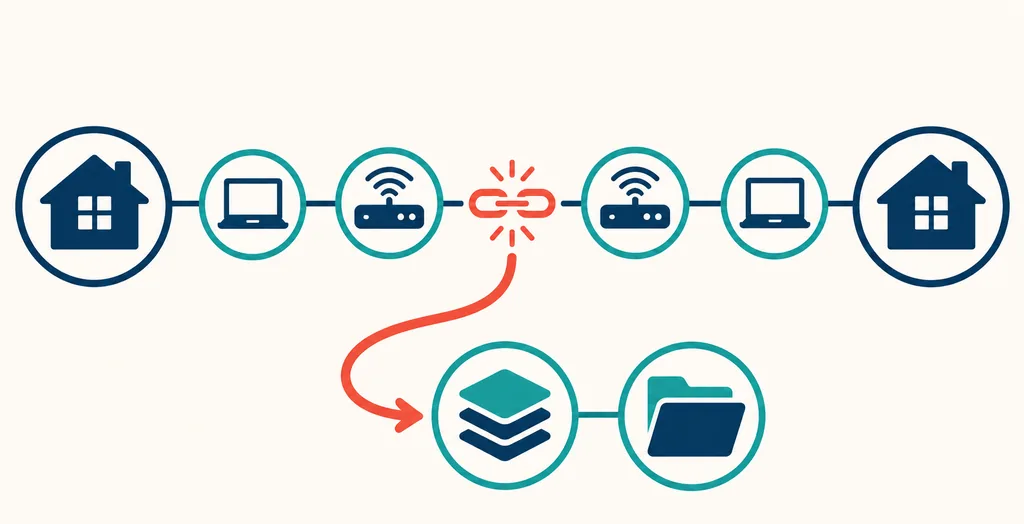
A room error can also be caused by a blocked permission, incorrect clock, captive portal, router isolation, NAT behavior or a server that is temporarily unavailable. Avoid opening broad inbound ports or disabling security software globally. Prefer the smallest permission change described by the current release documentation, then restore the original setting when the test ends.
- Check identity and time
Generate a fresh token if the current one is rejected, confirm the display name is unique, and verify that the operating-system clock is correct. Never paste a private token into a public issue.
- Compare the room boundary
Test the room panel without a game, then test a known-good title. If discovery fails, stay in the network branch; if discovery works, investigate game and build matching.
- Remove one network variable
Temporarily use a trusted private room or a different network path only when it is safe and allowed. Do not change the router, VPN, firewall and Eden settings in the same attempt.
- Test the input path
Assign distinct player profiles, disconnect duplicate virtual controllers and test the game's local player screen. A missing input is not proof that the room is offline.
- Rollback and report
Restore the last working build or profile, reproduce once, and report both build identifiers, platforms, game version, room type and last log line. Remove account names and personal paths.
Safe testing, rollback and useful reports
Multiplayer testing changes more than one user's state, so keep the experiment reversible. Back up saves and configuration outside the application folder, record the current build filename, and agree with the other player on one game and one test scene. Do not use an unverified APK, a bundled ROM archive or a random token generator to solve a room error. The source safety guide explains how to identify the project's release records.
A helpful report says what happened before the failure: room discovered or not, names visible or not, game launched or not, input working or not, and whether a rollback restored the result. Include the platform, CPU or SoC, GPU driver, renderer, game update and exact Eden tag. This evidence lets maintainers distinguish a service outage from a build regression or an unsupported title.
When you finish testing, close the room, revoke an exposed token and return any temporary firewall or router change to its previous state. Keep the known-good package until the new build has survived a normal session, save, reload and controller check.
- Back up saves and settings before a new build or network experiment.
- Never publish identity tokens, personal IP addresses or account credentials.
- Keep Stable available while evaluating a Nightly multiplayer change.
- Describe the boundary and the exact last working step in every report.
Eden Emulator multiplayer FAQ
How do I play multiplayer on Eden Emulator?
Use matching Eden builds and game updates, prepare a display name and identity token in the documented network settings, open Multiplayer, join or host a room, assign separate player profiles, and test a supported game. Start with one trusted participant and record every build identifier.
Can Eden Emulator play official online games?
Do not expect Eden to connect an emulator to Nintendo's official online service. The official Handbook describes emulator multiplayer rooms instead. Treat community methods as separate, version-specific evidence rather than an official online guarantee.
Why can I join an Eden room but the game will not start?
Room discovery proves that identity and networking reached the room, not that the game is compatible. Match the base game, update, system data and Eden tag, then compare a report for the same platform and build.
Does Eden Emulator multiplayer require Radmin VPN?
A community tutorial may mention Radmin VPN, but it is not a universal or official requirement. Begin with the current Eden Handbook room workflow and add a third-party network tool only when you understand its permissions and the exact problem it solves.
Can two Joy-Cons work in Eden Emulator multiplayer?
They may work for a local mode when the operating system and game expose two controllers. Pair them, remove duplicate virtual devices, map distinct profiles and verify the game's player-selection screen before testing a remote room.
What should I do when Eden crashes while joining a room?
Back up the profile, record the exact build and error, test the room panel without a game, then try one known-good title. If a Nightly caused the regression, keep Stable and follow a controlled rollback instead of deleting saves or downloading replacement files.
Does this guide provide multiplayer servers, games or keys?
No. It explains the documented setup and troubleshooting boundaries. Use only lawful game and system-data exports, and use the official release records for Eden packages and any room information.