
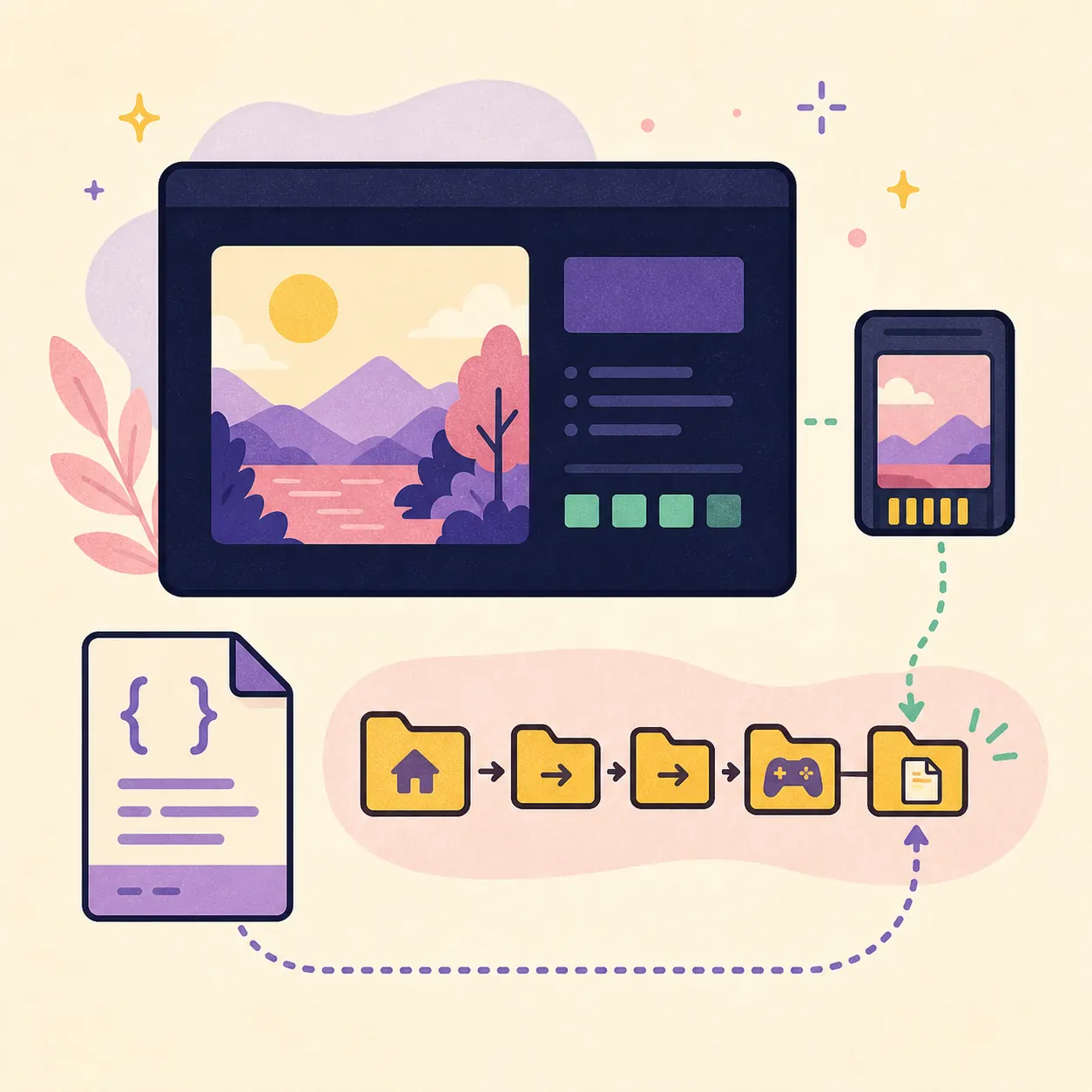
How to add cheats on Eden Emulator: the short version
The reliable answer to how to add cheats on Eden Emulator is to treat the Build ID as the file key, not as an optional detail. A cheat written for a different game revision may stay invisible, appear but do nothing, or cause unexpected behavior. Start with a legally owned game backup, a current Eden installation and a cheat source you are allowed to use.
The official Eden user handbook uses the same basic idea on desktop and Android: create a folder for the cheat, place a cheats subfolder inside it, save a TXT file named with the game's Build ID, then install the parent folder through the game's add-on flow. Menu wording can differ by platform, so verify the current handbook before treating a missing menu as a bug.
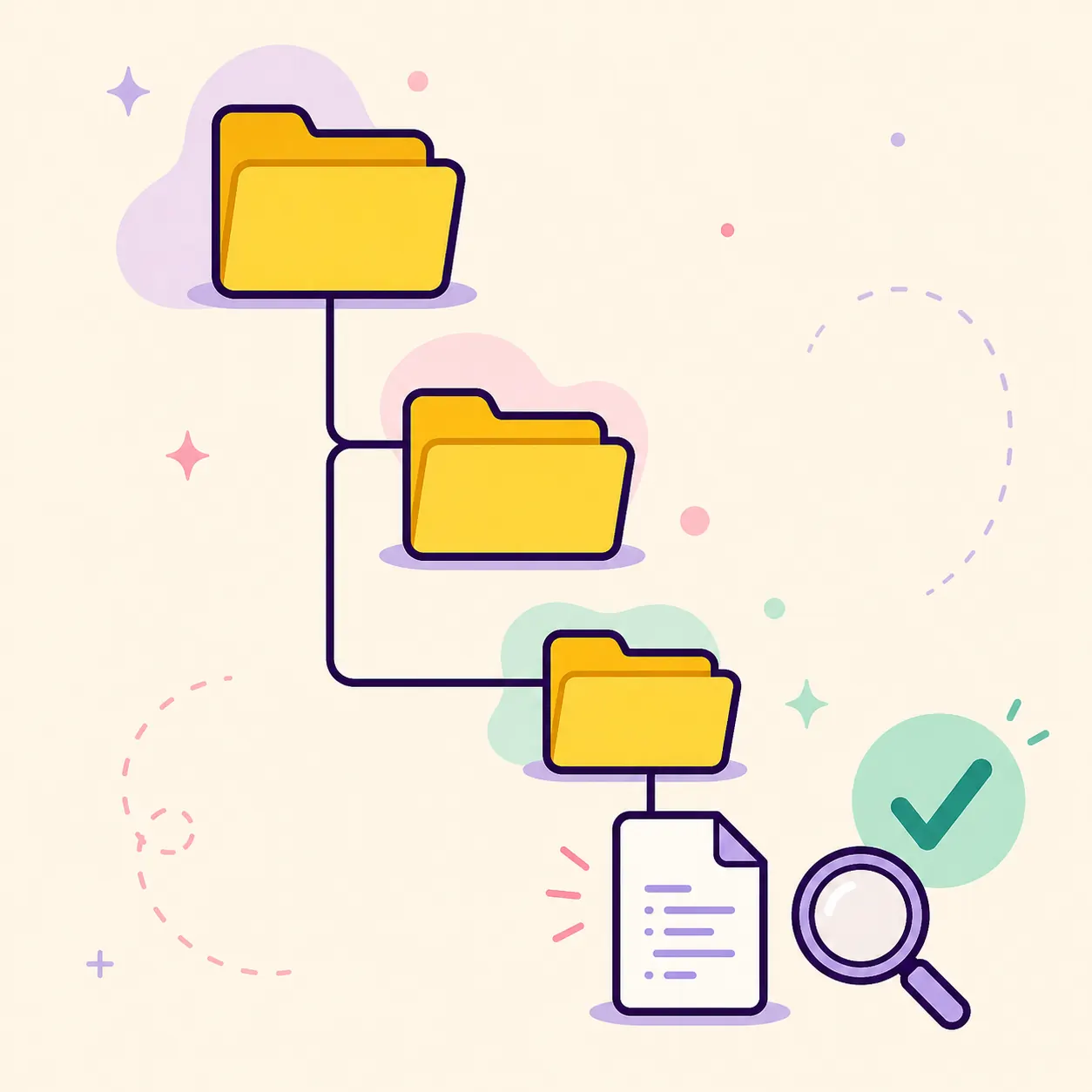
- Confirm the game and build
Launch the same game revision you intend to modify and record its Build ID from a trusted source or the Eden log. Do not reuse an ID from another update or region without checking it.
- Create a named cheat folder
Use a simple folder name such as Time 999 or Infinite Health. The display name can be descriptive; it does not replace the Build ID inside the TXT filename.
- Add the cheats subfolder
Inside the named folder, create a directory called cheats using lowercase spelling. The file explorer should show this subfolder when Eden asks you to select the mod or cheat directory.
- Save the TXT file
Put the code supplied by your permitted cheat source in a plain-text file named BUILDID.txt. Keep the code format unchanged and avoid rich-text editors that add hidden formatting.
- Install, enable and test
Install the parent folder through Add-ons or Configure Game, select the cheat entry and launch the game. Test one change at a time so a failure remains easy to diagnose.
Find the correct Eden Emulator Build ID
The Build ID connects a cheat file to a particular game executable revision. Eden's official handbook describes two practical checks: inspect the game with a compatible management tool on PC, or launch the game in Eden, close it and read the main Build ID line in the log. Use the complete identifier shown by the tool or log, then keep only the part required by the current handbook when naming the file.
Do not infer a Build ID from the game title, a download filename or a random web post. Updates, regions and revisions can change the identifier. If a cheat is listed for an older revision, treat it as a separate candidate and verify it before installing.
| Check | What to record | Why it matters |
|---|---|---|
| Game identity | Title, region and update level | A similar title can use a different executable or revision |
| Build ID | The main identifier from the log or trusted tool | The TXT filename must match the target revision |
| File format | Plain TXT, exact spelling and code lines | Rich text, renamed extensions or hidden characters can stop detection |
| Eden build | Stable or Nightly tag used for the test | Menu location and cheat behavior can change between builds |
Install Eden Emulator cheats on PC and Android
On desktop, right-click the game in Eden and use the current Open Mod Data Location or Configure Game path described by the official handbook. Create the named cheat folder, put cheats/BUILDID.txt inside it, return to the game's Add-ons area and select the entry. The visible label normally comes from the folder name, while the Build ID remains the matching key inside the file.
On Android, the handbook describes selecting the game properties, opening Add-ons, choosing Install and then Mods and cheats, and selecting the parent directory. The file picker should show the cheats subdirectory. If it does not, select the wrong level has been chosen; cancel and pick the folder above cheats instead of pointing Eden at the TXT file alone.
Use the official Eden Using Cheats handbook for current menu names. This page paraphrases the workflow so it remains readable, but the project documentation is the authority when a release changes the UI.
| Platform | Entry point | Expected structure |
|---|---|---|
| Windows / Linux / macOS | Game context menu, mod data location or Configure Game | Named cheat folder / cheats / BUILDID.txt |
| Android | Game properties / Add-ons / Install / Mods and cheats | Select the parent folder whose visible child is cheats |
| Any platform | Add-ons list after installation | Enable one named cheat and test a known effect |
Add multiple cheats without confusing the file structure
For a first test, install one cheat folder and one TXT file. The official handbook notes that multiple cheats should not be assumed to work from one combined file; repeat the folder-and-file structure for each cheat unless the current project documentation explicitly supports another format. Separate entries make it possible to disable one effect without changing the rest.
A combined text list can also hide which code is invalid. If a permitted source gives you several entries, split them into individual named folders, keep the same Build ID for the same game revision and test them one at a time. Do not copy a code block into a word processor or add a file extension twice, such as BUILDID.txt.txt.
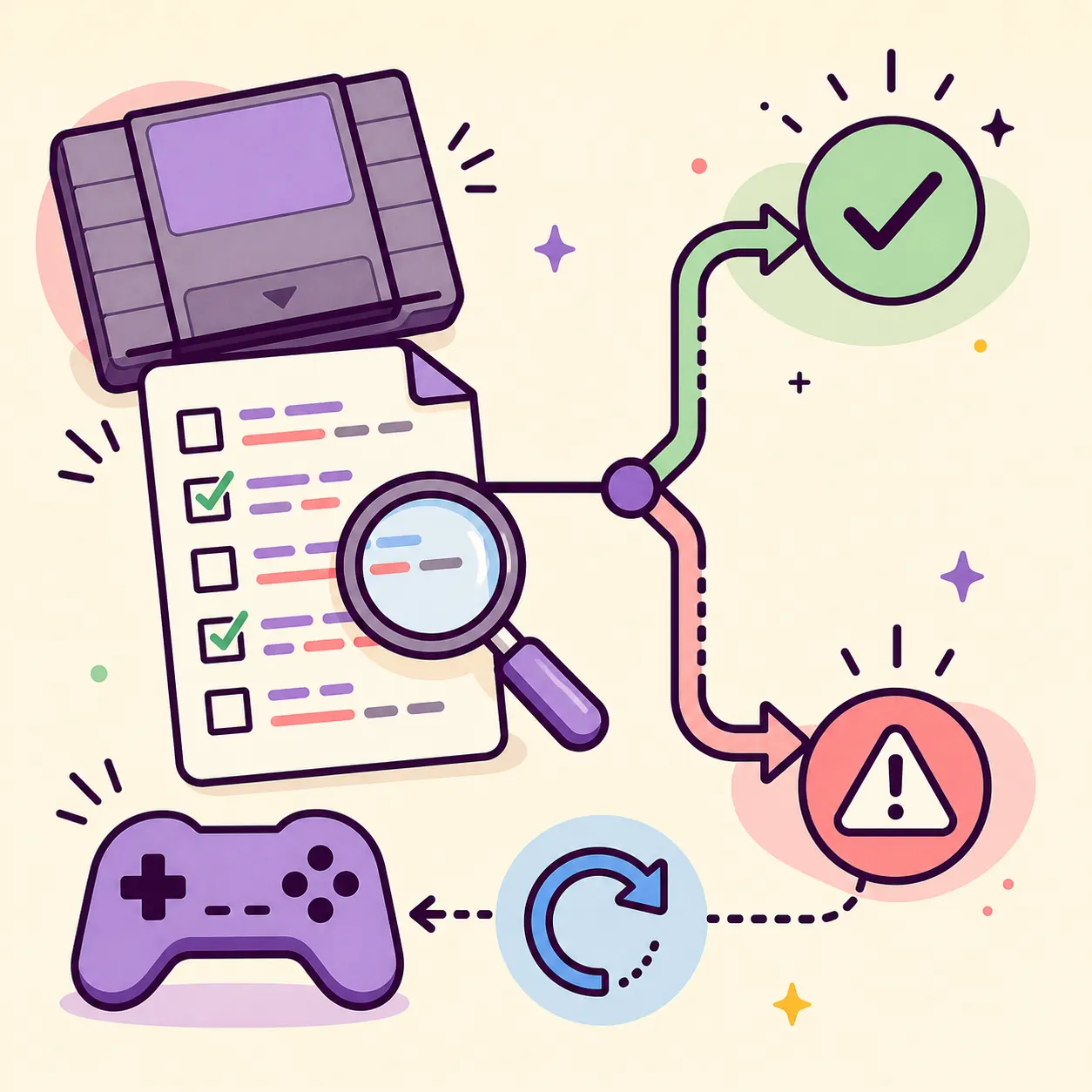
- Use one descriptive folder name per cheat.
- Keep the lowercase cheats subfolder in every entry.
- Use the same verified Build ID only when the game revision is identical.
- Enable one entry, test, then add the next entry.
- Keep a clean backup of the original game data and Eden configuration.
Eden Emulator cheats not working: safe checks
When Eden Emulator cheats are not working, change one variable at a time. First confirm that the cheat appears in Add-ons, then confirm that it is enabled, then re-check the Build ID and file extension. If the entry never appears, the folder level or file structure is usually wrong. If it appears but has no effect, the code may target another revision, require a specific game state or be incompatible with the current Eden build.
Avoid deleting saves, configuration and shader caches as a first response. Those files are evidence and may be unrelated to a cheat. Disable the single cheat, relaunch the game, and reproduce the same test with the same game revision. If the issue began after an emulator update, record the Stable or Nightly tag and compare the official release notes before changing several settings at once.
| Symptom | Likely cause | First check |
|---|---|---|
| Cheat is missing | Wrong parent folder or missing cheats directory | Select the parent folder and confirm it contains cheats/ |
| Entry appears but does nothing | Wrong Build ID, game state or unsupported code | Compare the ID and test one permitted code in a known state |
| File is ignored | Not plain TXT or filename has a second extension | Show file extensions and recreate BUILDID.txt in a plain editor |
| Game crashes after enabling | Bad code, mismatched revision or build-specific behavior | Disable the entry, relaunch and keep the exact Eden tag |
| One cheat works and another fails | The entries target different revisions or states | Split the tests and verify each source and Build ID |
Legal, source and version boundaries
This guide explains file placement and troubleshooting; it does not provide copyrighted game dumps, console keys, firmware or a library of ready-made cheat codes. Use only game backups and system data you are legally entitled to use, and follow the law that applies to you. A community link can help you understand a file format, but it is not proof that a code is safe, current or compatible.
The release snapshot checked for this page on August 16, 2026 kept Stable at v0.2.1, published June 2, 2026. The latest Nightly record checked in the same freshness pass was Eden Nightly - Aug 21 2026, tag v1787336654.5c54abf353. The official release API did not provide a reliable file size in this audit, so this page does not invent one or claim that a direct package URL is permanent.
If the menu or cheat behavior differs, open the official Eden website and the official Stable release record or Nightly release record before reporting a regression. A dated guide is a review snapshot, not a permanent latest-version promise.
Eden Emulator cheats FAQ
How do I add cheats on Eden Emulator?
Match the game Build ID, create a named cheat folder with a lowercase cheats subfolder, save a plain TXT file named with the Build ID, install the parent folder through Add-ons or Configure Game, then enable and test one entry.
What is the Eden Emulator Build ID?
It is the identifier for a particular game executable revision. Find it in a trusted game-management view or in the main Build ID line of the Eden log, then use the required part in the TXT filename.
Can I add cheats to Eden Emulator on Android?
Yes, when the game and cheat format are supported. Open the game properties, choose Add-ons, select Install and Mods and cheats, then choose the parent folder whose child directory is cheats.
Why are my Eden Emulator cheats not working?
Check the folder level, lowercase cheats directory, plain TXT extension, Build ID and game revision first. If the entry appears but has no effect, the code may target another revision or require a particular game state.
Can I put multiple cheats in one TXT file?
Do not assume that a combined file will work. The official handbook recommends repeating the named-folder and cheats-subfolder structure so each cheat can be enabled and tested separately.
Does this page provide cheat codes or game files?
No. It explains a file workflow only. It does not provide games, keys, firmware, copyrighted game dumps or a permanent library of cheat codes.